MacBook Charging On Hold: What It Means and How to Charge to 100%
Charging On Hold means macOS paused charging on purpose, usually near 80%. Optimized Battery Charging does this when it predicts you will stay plugged in (that is the “rarely used on battery” note). It slows battery aging and is not a fault. Need 100% now? Click the battery icon in the menu bar and choose Charge to Full Now.
Quick answer
Charging On Hold is usually normal
macOS may pause charging around 80% when Optimized Battery Charging predicts the Mac will stay plugged in. Leave it enabled for everyday desk use. If you need maximum runtime soon, choose Charge to Full Now from the battery menu.
If the menu says Charged to 80% Limit instead, that is the Charge Limit setting in System Settings → Battery on recent macOS versions. It is a cap you chose, and Charge to Full Now overrides it once too.
Why your MacBook says Charging On Hold
Apple uses Optimized Battery Charging to reduce how long your MacBook sits at 100%. Lithium-ion batteries age faster when they spend many hours full, especially when warm. So macOS can pause charging and finish later when it thinks you normally unplug.
When the menu adds “rarely used on battery,” macOS is telling you why: it has learned that you usually stay on power at this time of day. This is common on MacBooks used with external displays, docks, desk setups, and overnight chargers.
What to do when you need 100%
- Click the battery icon in the menu bar, if available.
- Choose Charge to Full Now when macOS shows that action.
- If you do not see it, open System Settings → Battery and click the info button next to Charging or Battery Health (the label depends on your macOS version).
- Use the override for travel, class, meetings, or long work sessions away from power.
Avoid turning Optimized Battery Charging off permanently just because you need 100% once. The one-time override is the battery-friendlier option.
When Charging On Hold may be a real problem
The message alone is usually harmless. Investigate further if your MacBook also shows one of these symptoms:
- Battery percentage keeps dropping while the charger is connected.
- The charger or USB-C cable disconnects repeatedly.
- The Mac is hot, throttling, or charging very slowly under load.
- Battery settings show Service Recommended.
- The Mac never charges past a very low percentage, even after cooling down and trying another charger.
For those cases, start with the MacBook battery not charging guide, then check Service Recommended battery warnings and battery health.
Is 80% enough?
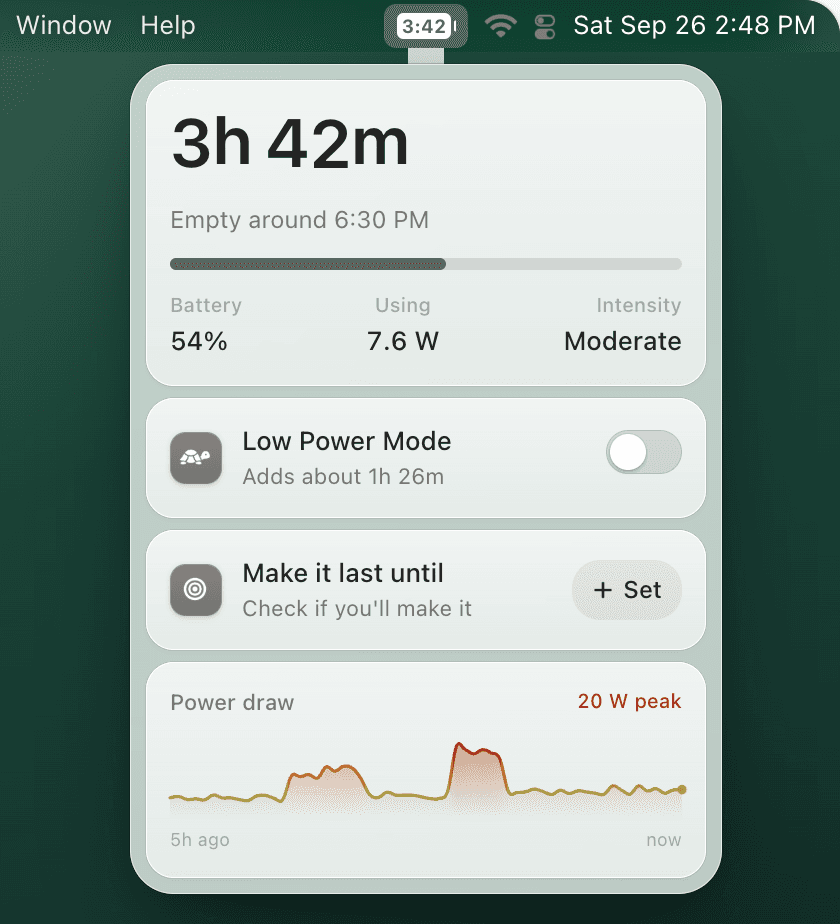
Charging On Hold protects the battery. TurtleBar tells you if the charge will last.
Stopping at 80% is good for the battery, but it leaves you guessing whether that is enough for the flight or the afternoon. While your Mac charges, TurtleBar shows the time to full and the clock time it will be full. The moment you unplug, it switches to the time you have left, worked out from what your Mac is really drawing.
- “Full at 5:40 PM”Time to full while charging, so you know when you can leave.
- 3h 42m leftIn the menu bar as soon as you unplug, instead of a bare percentage.
- Make it last until 6 PMShows On track or Short by, with a one-click fix when you are short.
What it does not do: TurtleBar never changes when or how your Mac charges and has no charge limit. Keep Apple's Optimized Battery Charging on. For a fixed cap, use the Charge Limit setting on recent macOS or AlDente.
One-time purchase, no subscription. 14-day refund. macOS 13 or later, Apple Silicon and Intel.
Charging On Hold vs not charging past 80%
These searches often describe the same thing. “Charging On Hold” is the message. “Not charging past 80%” is the symptom. If the Mac is healthy and you can charge to full now, it is probably optimized charging behavior. If it cannot charge normally with another cable, power adapter, and cooler temperature, troubleshoot it as a charging issue.
For deeper context, read MacBook Optimized Battery Charging and MacBook not charging past 80%.
FAQ
What does Charging On Hold mean on a MacBook?
It means macOS has paused charging on purpose, usually around 80%. Optimized Battery Charging does this when it predicts your Mac will stay plugged in for a while, because a battery that sits at 100% ages faster. It is not a fault.
What does “rarely used on battery” mean next to Charging On Hold?
It is the reason macOS gives for the pause: it has learned that you usually stay on power at this time of day, so it holds the charge near 80% and finishes charging later, closer to when you normally unplug.
How do I make a MacBook charge to full now?
Click the battery icon in the menu bar and choose Charge to Full Now. The Mac charges to 100% this time and keeps Optimized Battery Charging on for later. Use it before travel, class, or a long meeting.
Should I turn off Optimized Battery Charging?
Most people should leave it on. Turn it off in System Settings > Battery (click the info button next to Charging or Battery Health, depending on your macOS version) only if the pauses keep clashing with your schedule and Charge to Full Now is not enough.
Is Charging On Hold the same as a MacBook not charging?
No. On hold, the percentage stays steady near 80%. If it keeps dropping while plugged in, never rises from a low level, or the Mac does not detect the charger, check the charger wattage, cable, port, heat, and Battery Health instead.
Does Charging On Hold mean my battery is damaged?
Not by itself. It is normal macOS behavior. Damage is more likely if you also see Service Recommended, low maximum capacity, a high cycle count, swelling, or charging failures.
Can TurtleBar force charging to continue?
No. TurtleBar does not change when or how your Mac charges, and it has no charge limit. It answers the question that comes next: when the battery will be full while it charges, and how long the charge will last once you unplug.