Updated September 26, 2026 · By Soren Starck
MacBook Air Low Power Mode: How to Turn It On and the Best Setting
To turn on Low Power Mode on a MacBook Air, open System Settings > Battery and set Low Power Mode to Only on Battery. It lowers chip speed and screen brightness a little so the battery lasts longer. From 50% on a 13-inch Air, that can add very roughly 50 minutes to 1.5 hours of browsing.
Quick answer
The best Low Power Mode setup for MacBook Air
- Only on Battery if you want the simplest built-in battery saver.
- Automatic below 30% for normal days, so the Air runs at full speed until battery life matters.
- Automatic below 40% for travel days, classes, flights and long meetings.
- Off for heavy work like video exports, big Xcode builds and games, unless the battery is critical.
macOS has no "below 30%" option. TurtleBar adds it.
How to turn on Low Power Mode on MacBook Air
- Open System Settings. Click the Apple menu and choose System Settings.
- Click Battery. Click Battery in the sidebar.
- Set Low Power Mode. Click the pop-up menu next to Low Power Mode and choose Only on Battery. Choose Always for a long day away from a charger, or Never to turn it off.
On recent macOS versions you can also click the battery icon in the menu bar and click Low Power Mode. MacBook Air has no High Power Mode, so you'll only ever see the Low Power Mode menu, not the Energy Mode section some MacBook Pro models have. Want a faster toggle? The Low Power Mode shortcut guide has five, including a key combination you can build. Every option is explained in the Mac Low Power Mode guide.
What Low Power Mode changes on a fanless Air
Apple Silicon MacBook Air models have no fan. That changes the trade-off in two ways:
- No fan noise to save. On a MacBook Pro, Low Power Mode also keeps the fans quieter. On an Air, what you get is battery life and a cooler case.
- Heavy work slows down twice. A fanless Air already lowers its speed when it gets hot during long exports or builds. Low Power Mode lowers it further, so keep it off for that kind of work when you're plugged in.
For the work most people do on an Air, writing, browsing, email, calls, the difference in speed is hard to notice, and the extra time is not.
How much longer does a MacBook Air last with Low Power Mode?
It depends on what you're doing. Low Power Mode typically cuts power draw by very roughly 20 to 30% in everyday work on Apple Silicon. Here is what that means from 50% on a 13-inch MacBook Air:
| From 50% | Without Low Power Mode | With Low Power Mode | Time added |
|---|---|---|---|
| Writing (about 4.1 W) | 6h 25m | 8h 01m to 9h 10m | about 1h 35m to 2h 45m |
| Browsing (about 7.7 W) | 3h 25m | 4h 17m to 4h 54m | about 50 min to 1h 30m |
| Video call (about 13.2 W) | 2h 00m | 2h 29m to 2h 51m | about 30 to 50 min |
Estimates from the 13-inch Air's 52.6 Wh battery and typical power draw, not measurements. Brightness, battery health and background work change the real numbers. A 15-inch Air holds about 66.5 Wh, so each percent lasts about a quarter longer at the same draw. Try your own numbers in the battery life calculator, or see how to check battery time remaining.
Best Low Power Mode settings for MacBook Air
| Situation | Best setting | Why |
|---|---|---|
| Everyday browsing, writing, email | Only on Battery, or automatic below 30% | Saves energy with little noticeable impact on light work. |
| Travel day or long meeting | Always, or automatic below 40% | Starts saving before the battery gets stressful. |
| Video calls on battery | A rule for Zoom, Teams or Meet | Calls are one of the heaviest everyday drains on an Air. |
| A flight or class that ends at a set time | A target time, such as "last until 6 PM" | Turns it on only if you wouldn't make it otherwise. |
| Xcode builds, video editing, games | Never, unless the battery is critical | A fanless Air already slows down under long heavy loads. |
Why a battery-level rule beats remembering the toggle
Most MacBook Air owners don't need Low Power Mode all day. They need it at the right moment, before the last 30 to 40% goes, because it stretches whatever charge is left: switched on at 50% it adds far more time than at 20%. macOS doesn't let you say "turn on Low Power Mode below 30%". On macOS Tahoe 26 or later you can script it with a Shortcuts automation, or let TurtleBar do it.
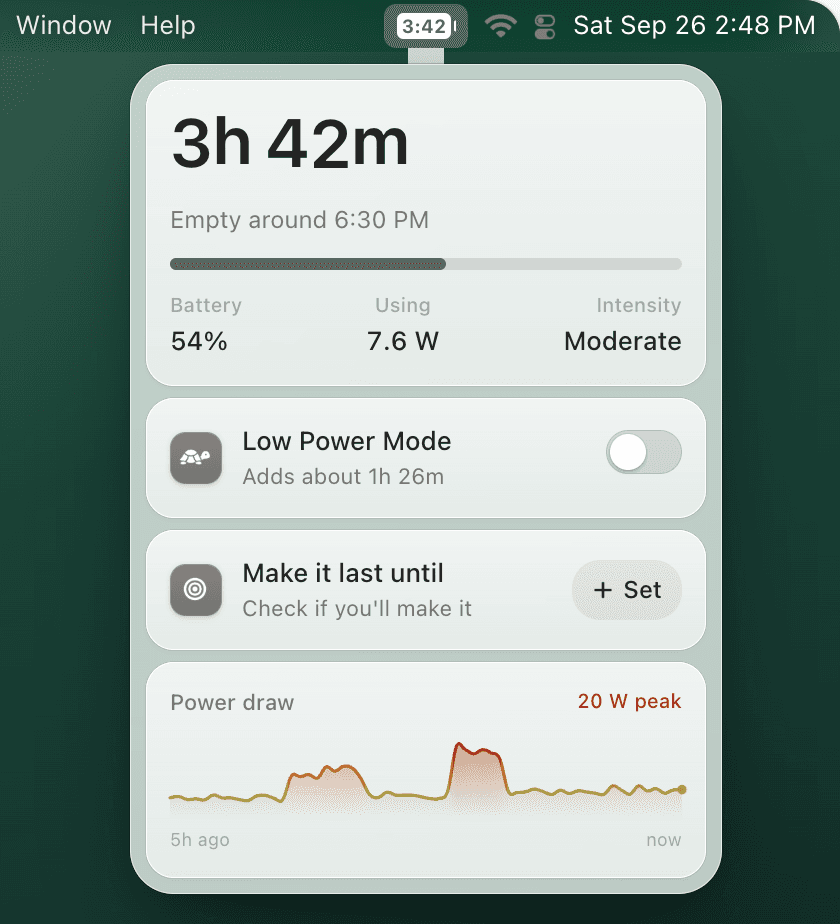
TurtleBar sits in the menu bar with your Air's time remaining. It can switch Low Power Mode on below a battery level, when time left drops under a runtime you choose, when you won't make it to a target time, or when chosen apps are open, then turn it back off when you charge. The switch in its popover shows what Low Power Mode would add on your Air right now, such as "Adds about 1h 10m".
MacBook Air battery saver
Have Low Power Mode switch on before your Air gets low.
Set a 30% or 40% rule once. One-time $4.99, no subscription, 14-day refund, macOS 13 Ventura or later.
MacBook Air Low Power Mode FAQ
Does MacBook Air have Low Power Mode?
Yes. Every Apple Silicon MacBook Air has Low Power Mode in System Settings > Battery. MacBook Air models don't have High Power Mode, which Apple reserves for some MacBook Pro and desktop models.
Should I use Low Power Mode on my MacBook Air?
Yes when you're unplugged and doing light work, traveling, or trying to stretch the last 30 to 40% of the battery. Leave it off for exports, big builds and games when you need the speed.
What is the best Low Power Mode setting for MacBook Air?
Only on Battery is the simplest good setting. If you'd rather keep full speed until the battery runs low, have it switch on automatically below 30% on normal days or 40% on travel days.
Does Low Power Mode slow down a MacBook Air?
A little for everyday work and noticeably for heavy work. Writing, browsing and video calls usually feel the same. Exports and builds take longer, especially on a fanless Air that is already hot.
How much longer does a MacBook Air last with Low Power Mode?
It varies with what you're doing. Low Power Mode typically cuts power draw by very roughly 20 to 30% in everyday work. From 50% on a 13-inch MacBook Air, that is roughly 50 minutes to 1.5 hours more browsing.
Can MacBook Air turn on Low Power Mode automatically at 30%?
Not from System Settings. On macOS Tahoe 26 or later, a Shortcuts automation can do it with a script. TurtleBar does it with one rule and can turn it back off when you charge.
Is Low Power Mode the same as Optimized Battery Charging?
No. Low Power Mode makes the current charge last longer. Optimized Battery Charging and the Charge Limit added in macOS 26.4 control how full the battery gets, to slow down long-term wear.
Battery draining faster than these numbers suggest? Check the biggest energy users in Activity Monitor, then work through the Mac battery drain checklist. For charging questions, see Optimized Battery Charging.
Related guides:
Get more out of every MacBook Air charge
Time remaining in the menu bar and Low Power Mode that switches itself on. $4.99 once.