Updated September 26, 2026 · By Soren Starck
Low Power Mode on Mac: How to Turn It On and What It Does
To turn on Low Power Mode on a Mac, open System Settings, click Battery, and set Low Power Mode to Only on Battery or Always. It lowers processor and graphics speed, dims the display slightly and cuts some background work, so the charge lasts longer. It is available on MacBooks with macOS Monterey or later.
Want the automatic version?
Have Low Power Mode switch on before your Mac hits 10%.
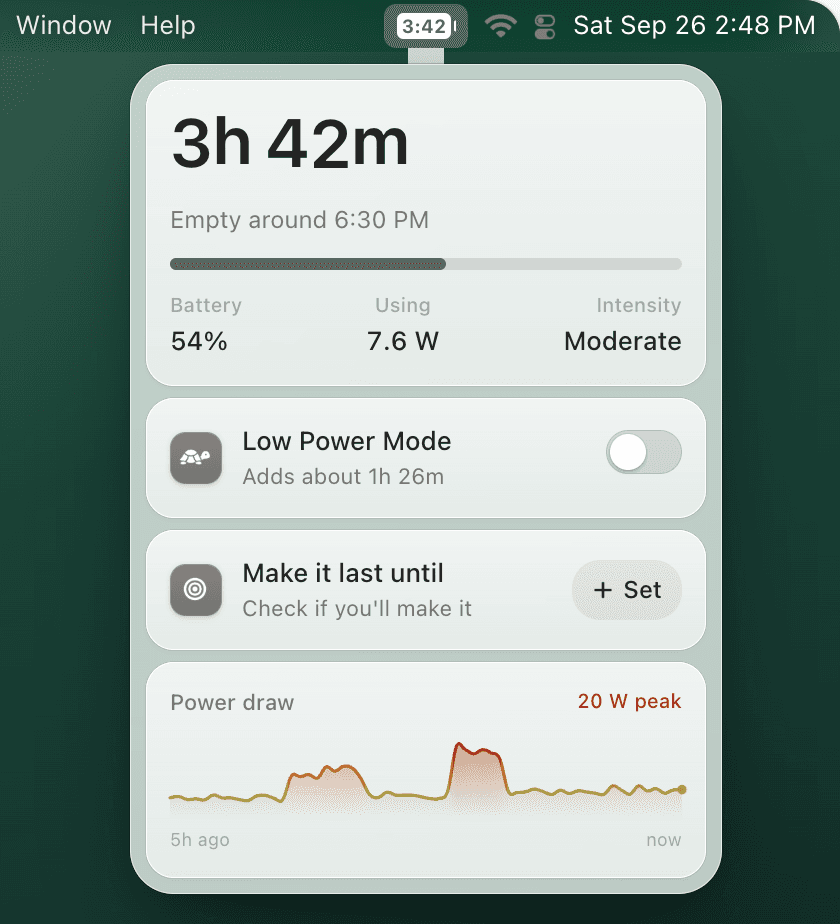
System Settings can't turn it on at a battery level you choose. TurtleBar can: below 30%, when less than an hour is left, or when your Mac won't last until a time you set. $4.99 once, no subscription.
How to turn on Low Power Mode on Mac
- Open System Settings. Click the Apple menu in the top-left corner of the screen and choose System Settings.
- Click Battery. Click Battery in the sidebar. On a desktop Mac that supports Low Power Mode, the section is called Energy.
- Open the Low Power Mode menu. Click the pop-up menu next to Low Power Mode.
- Choose when it runs. Choose Only on Battery for everyday use, Always for a long day away from a charger, or Only on Power Adapter to keep a plugged-in Mac cooler and quieter. Choose Never to turn it off.
| Option | What it does | Use it when |
|---|---|---|
| Never | Low Power Mode stays off. | You're at a desk, plugged in, or need full speed. |
| Always | On all the time, on battery and on power. | A travel day of writing, email and browsing. |
| Only on Battery | On whenever the Mac is unplugged, off when you plug in. | Most people, most days. |
| Only on Power Adapter | On only while plugged in. | You want a plugged-in Mac cooler and quieter. |
See "Energy Mode" instead?
Some MacBook Pro models, and desktops that support it, show an Energy Mode section with separate On battery and On power adapter menus. Choose Low Power in the On battery menu for the same effect. From macOS Sequoia 15.1 you can also pick an Energy Mode in Control Center. Can't find either? See Low Power Mode not showing on Mac.
Faster ways to switch it on
- Battery menu: on recent macOS versions, click the battery icon in the menu bar (or Battery in Control Center) and click Low Power Mode.
- Terminal: run
sudo pmset -a lowpowermode 1and enter your password. Use-binstead of-ato change only the battery setting. - A keyboard shortcut you build: the Low Power Mode shortcut guide has five fast ways, including a key combo made with the Shortcuts app.
How to turn off Low Power Mode
Set the Low Power Mode menu in System Settings > Battery back to Never, or run sudo pmset -a lowpowermode 0. If it seems to switch itself off, check the menu: Only on Battery turns it off every time you plug in, and Only on Power Adapter turns it off every time you unplug.
The missing option
None of the four options says "turn on at 30%".
Only on Battery slows your Mac from the moment you unplug, even at 100%. TurtleBar waits until it matters: it turns Low Power Mode on when the battery drops below the level you pick, and back off when you start charging. It lives in the menu bar next to your battery time left.
- Secure Stripe checkout
- One-time $4.99, no subscription
- 14-day refund
What does Low Power Mode do on a Mac?
Low Power Mode makes your Mac use less energy. It lowers the speed of the processor and graphics, turns the display brightness down slightly and reduces some background activity. Apple says that from macOS Sequoia 15.1 it also helps keep fan noise down. Your apps, files and settings stay exactly as they were.
- Lower peak performance: the chip runs at lower clock speeds, so heavy tasks take longer while light work mostly feels the same.
- A slightly dimmer display: the screen is one of the biggest power users on a laptop.
- Less background work: some background tasks run less often or wait until later.
- Cooler and quieter: less power means less heat, so fans spin up less on Macs that have them.
Does Low Power Mode slow down a Mac?
Yes for heavy work, barely for light work. Video exports, large builds, games and 3D take noticeably longer. Writing, email, browsing and video calls usually feel the same. That trade-off is why most people don't want it on all day, and why the best time to turn it on is when battery life starts to matter.
How much battery does Low Power Mode save?
It depends on what you're doing. On Apple Silicon MacBooks, Low Power Mode typically cuts power draw by very roughly 20 to 30% in everyday work, which stretches the charge you have left by about 25 to 40%. Because it works on the remaining charge, the earlier you turn it on, the more time it adds.
| Turned on at | Time left without it | Time left with it | Time added |
|---|---|---|---|
| 80% | 5h 29m | 6h 51m to 7h 50m | about 1h 20m to 2h 20m |
| 50% | 3h 25m | 4h 17m to 4h 54m | about 50 min to 1h 30m |
| 30% | 2h 03m | 2h 34m to 2h 56m | about 30 to 55 min |
| 20% | 1h 22m | 1h 43m to 1h 57m | about 20 to 35 min |
Estimates for a 13-inch MacBook Air (52.6 Wh battery) browsing at about 7.7 W, with Low Power Mode drawing 20 to 30% less. Arithmetic, not measurements: brightness, battery health and background work change the real numbers. Try your own in the battery life calculator.
The pattern matters more than the exact minutes: switching it on at 50% instead of 20% buys about two and a half times as much extra time. Most people only remember Low Power Mode when the battery warning appears, which is the point where it helps least.
See the real number for your Mac
TurtleBar prints what Low Power Mode adds right on the switch.
It reads your Mac's actual power draw and learns what Low Power Mode saves on it, so the switch says something like "Adds about 1h 10m" instead of a guess. Set "Make it last until 6:00 PM" and it tells you if you're on track, or if Low Power Mode would cover the gap, with a one-click fix.
Which Low Power Mode setting is best?
For most MacBook owners, Only on Battery is the best built-in setting: full speed when plugged in, lower power when you're not. If you'd rather keep full speed until the battery actually runs low, use a threshold instead, such as on below 30% on a normal day or below 40% on a travel day.
| Your day | Best setting | Why |
|---|---|---|
| At a desk, plugged in | Never | Nothing to save; keep full speed. |
| Normal day, some time unplugged | Only on Battery, or automatic below 30% | Saves power without slowing the first hours. |
| Travel day, long meetings | Always, or automatic below 40% | Starts saving while there is still plenty to save. |
| Video calls on battery | A rule for Zoom, Teams or Meet | Calls are long and steady, so savings add up. |
| Exports, builds, games | Never, unless the battery is critical | These tasks slow down the most. |
| A hard deadline: a flight, a class | A target time, such as "last until 6 PM" | Turns it on only if you won't make it otherwise. |
The threshold, per-app and target-time rows need an automation layer. TurtleBar has all three.
Can Low Power Mode turn on automatically on Mac?
Not at a battery percentage from System Settings: it offers Always, Only on Battery and Only on Power Adapter, and nothing like "below 30%". On macOS Tahoe 26 or later you can build that trigger yourself with a Shortcuts automation and a shell script. TurtleBar has the rules built in.
Do it yourself with Shortcuts
Free · macOS Tahoe 26 or later
A Battery Level automation (Falls Below 30%) runs pmset -a lowpowermode 1 as administrator. It works on percentages only, can ask for your password, and needs a second automation to switch back.
Built in with TurtleBar
$4.99 once · macOS 13 Ventura or later
- When the battery drops below a level you pick
- When time left drops below a runtime you pick
- When your Mac won't make it to a target time
- After a number of minutes idle
- When chosen apps are open, and off for others
TurtleBar also has guards: it can skip the rule while the charge is still above 80%, turn Low Power Mode back off when you start charging, and it never undoes a change you made yourself. Every automatic switch tells you why it happened. It needs administrator permission once to change the setting, and your data stays on your Mac.
Low Power Mode vs Optimized Battery Charging
They solve different problems. Low Power Mode makes today's charge last longer by using less power. Optimized Battery Charging and the Charge Limit added in macOS 26.4 control how full the battery gets, to slow down long-term wear. If your MacBook says "charging on hold" or stops at 80%, that is charging management, not Low Power Mode: see the 80% charge limit guide and battery health.
Frequently asked questions
Does my Mac have Low Power Mode?
MacBooks running macOS Monterey or later have it in System Settings > Battery. Some recent desktop Macs, such as newer Mac mini, iMac and Mac Studio models, have it under Energy. If you can't find it, your Mac may show it as Energy Mode, or your model or macOS version may not support it.
How do I turn off Low Power Mode on Mac?
Open System Settings > Battery and set Low Power Mode to Never. In Terminal, sudo pmset -a lowpowermode 0 does the same. If it is set to Only on Battery, it also turns off by itself whenever you plug in.
Why does Low Power Mode keep turning off on my Mac?
It is most likely set to Only on Battery, which turns it off whenever the Mac is plugged in, or Only on Power Adapter, which turns it off on battery. Choose Always if you want it on all the time.
Is there a keyboard shortcut for Low Power Mode on Mac?
No, macOS has no default one. The quickest built-in route is the battery icon in the menu bar on recent macOS versions, or System Settings > Battery. You can build your own keyboard shortcut in the Shortcuts app with a script that runs pmset.
Can Low Power Mode turn on automatically at 20% or 30% on Mac?
Not from System Settings. On macOS Tahoe 26 or later, a Shortcuts automation with the Battery Level trigger can run pmset for you. TurtleBar does it with one setting, can use time left instead of a percentage, and can turn it back off when you charge.
Should I leave Low Power Mode on all the time?
You can, and it won't harm the Mac, but heavy apps will run slower even at full charge. Only on Battery, or a rule that switches it on below 30 or 40%, keeps full speed until battery life actually matters.
Does Low Power Mode hurt the battery?
No. It only lowers how much power the Mac uses. It doesn't change how the battery charges, and using less energy per hour means the battery goes through charge cycles a little more slowly.
What is Energy Mode on Mac?
Energy Mode is what Apple calls the setting on Macs with Power Modes, such as some MacBook Pro models. It has separate On battery and On power adapter menus, each with Automatic, Low Power and, where supported, High Power.
Related guides:
Let Low Power Mode switch itself on
Battery-level, time-left and per-app rules, plus battery time remaining in your menu bar. $4.99 once, 14-day refund.