Why Is My Mac Battery Draining So Fast? Find the Cause and Fix It
Fast drain on a Mac usually comes from one app or background task, not a failing battery. Open Activity Monitor, click Energy, and sort by Energy Impact: the apps at the top are your drain. The usual suspects are Chrome, Spotlight indexing after a macOS update, chat apps, Docker, and video calls.
Step 1: Check What Is Draining Your Battery
Before changing any settings, find out what is actually consuming power:
Activity Monitor (Built-in)
Open Activity Monitor (Applications > Utilities > Activity Monitor), click the Energy tab, and sort by Energy Impact. The apps at the top are your biggest battery consumers.
Pay attention to the "12 hr Power" column too. Some apps don't show high instant energy impact but consume significant power over time through background activity.
Energy Impact, in minutes
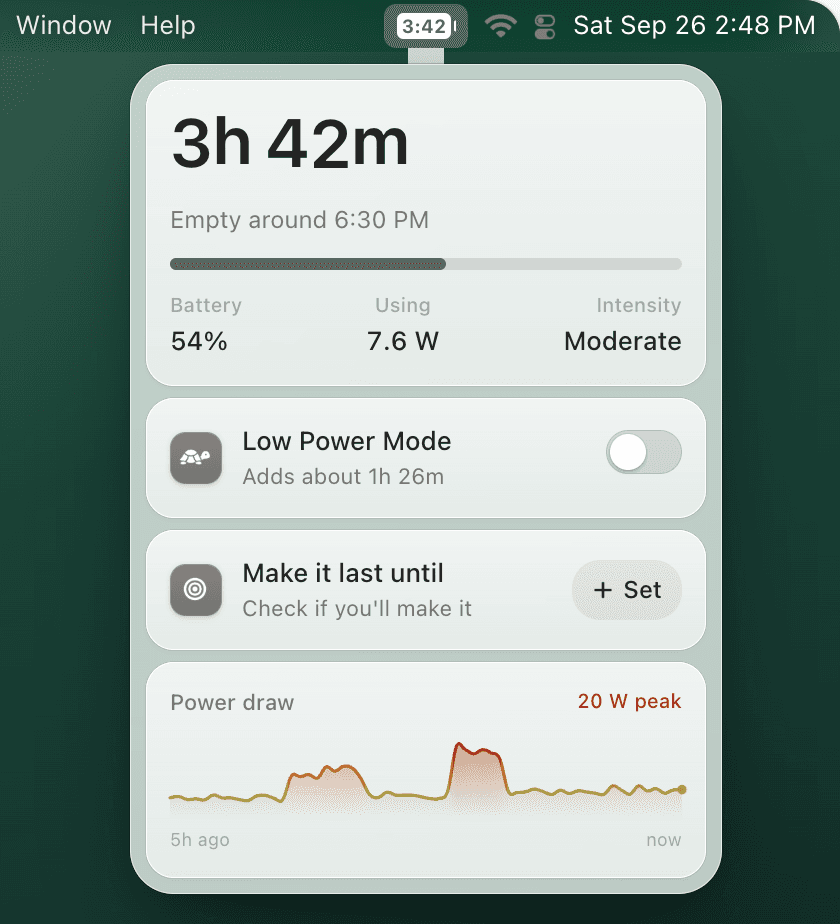
Activity Monitor ranks the apps. TurtleBar tells you what each one costs.
Energy Impact is a relative score, which makes it hard to act on. TurtleBar lists the five apps using the most power right now, in watts and in the minutes of battery each one costs, next to a live count of the time you have left. Quit the worst one and the estimate catches up within about a minute.
- Top 5 apps by powerIn watts, and in the battery time each one costs you.
- 3h 42m in the menu barTime left, read from what your Mac is really drawing.
- Per-app Low Power ModeSwitch it on automatically while Zoom, Docker, or Chrome is open.
What it does not do: TurtleBar cannot fix a worn battery. If Battery Health says Service Recommended, see Cause 6 below.
One-time purchase, no subscription. 14-day refund. macOS 13 or later, Apple Silicon and Intel.
Step 2: Common Causes and Fixes
Cause 1: Google Chrome
Chrome is consistently one of the biggest battery drains on macOS. Each tab runs as a separate process, and Chrome's V8 JavaScript engine is less power-efficient than Safari's WebKit. Extensions add even more overhead.
Fix: Try Safari for daily browsing; on a Mac it is usually lighter on the battery than Chrome. If you must use Chrome, close unused tabs and disable unnecessary extensions.
Cause 2: Spotlight Reindexing After macOS Update
After a macOS update, Spotlight rebuilds its search index. This process can take hours and uses significant CPU/battery. You'll see "mds" and "mds_stores" using high CPU in Activity Monitor.
Fix: Wait. Spotlight indexing finishes on its own, usually within 24-48 hours. If possible, keep your Mac plugged in during this period. While "mds" and "mds_stores" stay near the top of Activity Monitor, indexing is still running.
Cause 3: Background Apps (Slack, Teams, Discord)
Communication apps maintain constant network connections and process notifications, even when minimized. Slack, Microsoft Teams, and Discord are common offenders.
Fix: Quit these apps when not actively using them. Use the web versions instead when possible, as they consume less energy than desktop apps.
Cause 4: Docker and Development Tools
Docker Desktop, local development servers, and editors like VS Code, Cursor, or Xcode can drain battery rapidly. Docker's VM layer adds overhead even when containers are idle.
Fix: Stop Docker Desktop when you're not actively developing. Quit your IDE when switching to other tasks. Use TurtleBar's per-app power rules to automatically enable Low Power Mode when these apps are running.
Cause 5: Video Calls (Zoom, Google Meet)
Video calls use camera, microphone, network, CPU (for encoding/decoding video), and display simultaneously. An hour-long call can take a big share of your battery.
Fix: Turn off your camera when not needed. Use automated Low Power Mode during calls. TurtleBar can enable Low Power Mode automatically when Zoom is running.
Cause 6: Degraded Battery
If your MacBook is several years old, the battery may have degraded. Check battery health: System Settings > Battery > Battery Health. If it says "Service Recommended," the battery has lost significant capacity.
Fix: Replace the battery. Apple's price depends on your model, and a new battery restores original capacity. See the MacBook battery health guide to confirm it is really the battery first.
Step 3: Prevent Battery Drain from Happening
Once you've fixed the immediate issue, set up prevention:
- Automate Low Power Mode: Use TurtleBar to auto-enable Low Power Mode at 40% battery and for power-hungry apps
- Watch the cost: TurtleBar's top 5 apps list shows what each heavy app costs in minutes, so you catch problems early
- Use Safari: Usually lighter on the battery than Chrome
- Reduce brightness: One of the biggest battery savers
- Check after updates: After every macOS update, wait 24-48h for Spotlight indexing to finish before judging battery life
Frequently Asked Questions
Why is my Mac battery draining so fast?
Usually one app or background task, not the battery. Common causes are Chrome and its extensions, Spotlight reindexing after a macOS update, chat apps like Slack or Teams, Docker and development tools, video calls, and a worn battery. Activity Monitor's Energy tab shows which one it is.
How do I check what is draining my Mac battery?
Open Activity Monitor (Applications > Utilities), click the Energy tab, and sort by Energy Impact. The apps at the top are using the most power right now, and the 12 hr Power column shows what has been heavy over time. TurtleBar shows the same thing in minutes: its top 5 list gives each app's power in watts and what it costs in battery time.
Is it normal for my MacBook to drain in sleep mode?
A few percent overnight is normal. If you lose 10% or more, check System Settings > Battery > Options for Wake for network access (and Power Nap on Macs that have it), look for apps preventing sleep, and run pmset -g log in Terminal to see what woke your Mac.
Related guides:
See which apps drain your battery, in minutes
TurtleBar shows the time you have left and the five apps using the most power, with what each one costs. $4.99 one-time.