MacBook Not Charging Past 80%? Why It Happens & What to Do
If your MacBook is stuck at 80%, says “Charged to 80% Limit” or “Charging On Hold,” or refuses to charge to 100%, the answer is usually simple: macOS is protecting battery health, either with a Charge Limit or with Optimized Battery Charging. Use this guide to decide whether to leave it alone, force a full charge, or troubleshoot a real charging problem.
Quick answer
A MacBook paused at 80% is usually normal
- Check the wording: “Charged to 80% Limit” means a Charge Limit is set (Apple silicon, macOS Tahoe 26.4 or later). “Charging On Hold” or “Rarely Used On Battery” points to Optimized Battery Charging. Neither means a broken charger.
- Need 100% today? Choose Charge to Full Now in the battery menu; it overrides a Charge Limit for that charge. For Optimized Battery Charging, you can also turn it off temporarily in Battery Health settings.
- Want longer battery lifespan? Leaving the 80% limit or pause in place is usually the right choice when your MacBook spends hours plugged in.
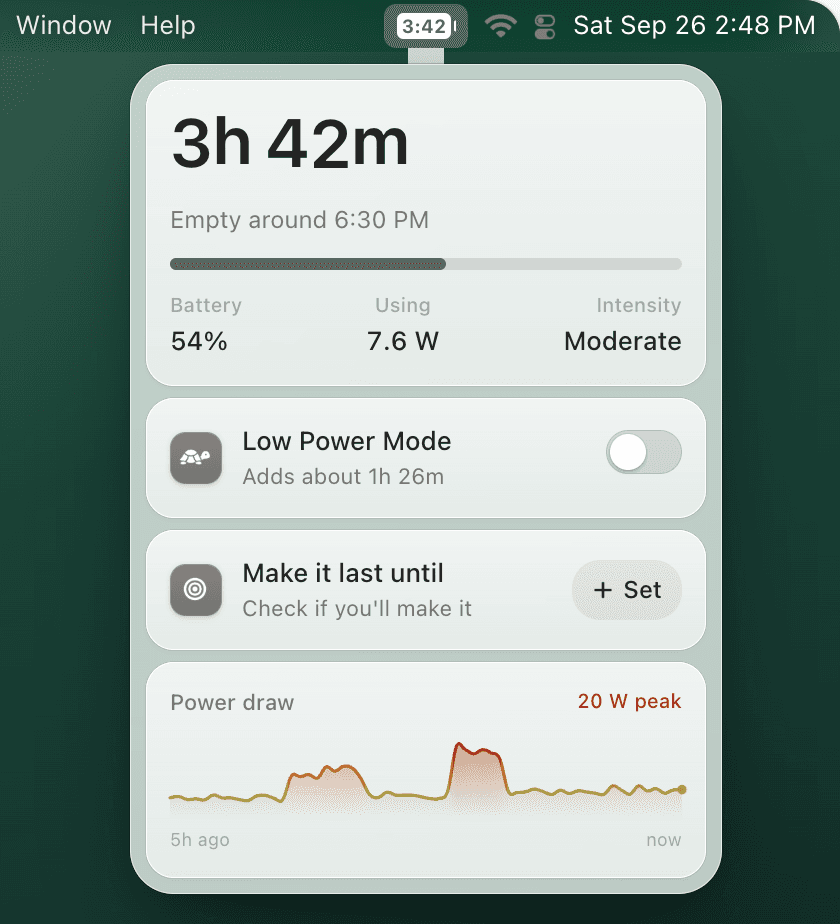
- After you unplug: TurtleBar shows real time remaining and can trigger Low Power Mode before the battery gets low.
Why macOS stops charging around 80%
Lithium-ion batteries age faster when they sit hot and full for long periods, and macOS has two built-in ways to avoid that.
The Charge Limit. On a Mac with Apple silicon running macOS Tahoe 26.4 or later, you can set a Charge Limit between 80% and 100% in System Settings → Battery, under the info button next to Charging. Set to 80%, the Mac stops there on every charge (unless you choose Charge to Full Now) and the battery menu shows “Charged to 80% Limit.” If you don't remember turning it on, check that setting first.
Optimized Battery Charging. This one watches your routine and may pause charging at about 80% until it thinks you need a full battery. It is common on desk setups, external displays, docks, and MacBooks that are plugged in overnight, and the battery menu shows “Charging On Hold.”
A third-party limiter app such as AlDente can also hold the charge at 80%, so check your menu bar for one if neither message appears.
The important distinction: an 80% stop with a clear battery-health message is normal. A MacBook that says “Not Charging,” loses battery while plugged in, gets hot, or will not charge above 80% after you raise the limit or disable the feature deserves more troubleshooting.
Usually normal
Charged to 80% Limit or Charging On Hold near 80%, normal temperature, good charger, and battery health says Normal.
Check settings
You need a full travel charge, but a Charge Limit or Optimized Battery Charging is holding it. Use Charge to Full Now for this charge and keep the protection on.
Troubleshoot
Not Charging, underpowered adapter, heat, bad cable, swollen battery, shutdowns, or Service Recommended.
How to charge to 100% when you need it
- Click the battery icon in the menu bar and choose “Charge to Full Now.” With a Charge Limit set, this overrides the limit for that charge only.
- To change the Charge Limit itself, open System Settings → Battery, click the info button next to Charging, pick a higher setting (up to 100%), and click Done.
- Without a Charge Limit, if no menu option appears, open System Settings → Battery → Battery Health, temporarily turn off Optimized Battery Charging, let the Mac charge, then turn it back on after your trip or long session.
- If a limiter app such as AlDente is running, raise or pause its limit in that app.
- If it still will not charge, test a known-good cable and charger connected directly to the Mac, not through a hub.
TurtleBar workflow
Protect the battery at your desk. Protect runtime when you unplug.
macOS can manage charging behavior, but it does not give you a reliable “will this last through my meeting?” answer. TurtleBar adds a menu bar battery-time estimate, custom low-battery alerts, and Low Power Mode automation so you can leave 80% charging protection on without guessing about runtime.
When 80% is not the real issue
If the Mac says “Not Charging” instead of “Charging On Hold” or “Charged to 80% Limit,” the problem may be power delivery. A phone charger, weak USB-C hub, damaged cable, dirty port, or heavy workload can leave the Mac running from the adapter without adding battery percentage. Start with a direct connection to a charger rated for your MacBook.
Stop troubleshooting and seek service if the battery is swollen, the trackpad or case is lifting, the Mac gets unusually hot, shuts down unexpectedly, or Battery Health says Service Recommended. For the broader checklist, use the MacBook battery not charging guide.