Is My MacBook Battery Health Good? What Normal, 80%, and Cycle Counts Mean
MacBook battery health is good when System Settings → Battery → Battery Health says Normal and Maximum Capacity is 80% or higher; 90% and up feels close to new. Apple rates most MacBook Air, MacBook Pro, and MacBook Neo models for 1,000 cycles and designs them to keep up to 80% of original capacity at that count.
Battery health vs battery life
Battery health is the size of the tank. TurtleBar shows how far this charge goes.
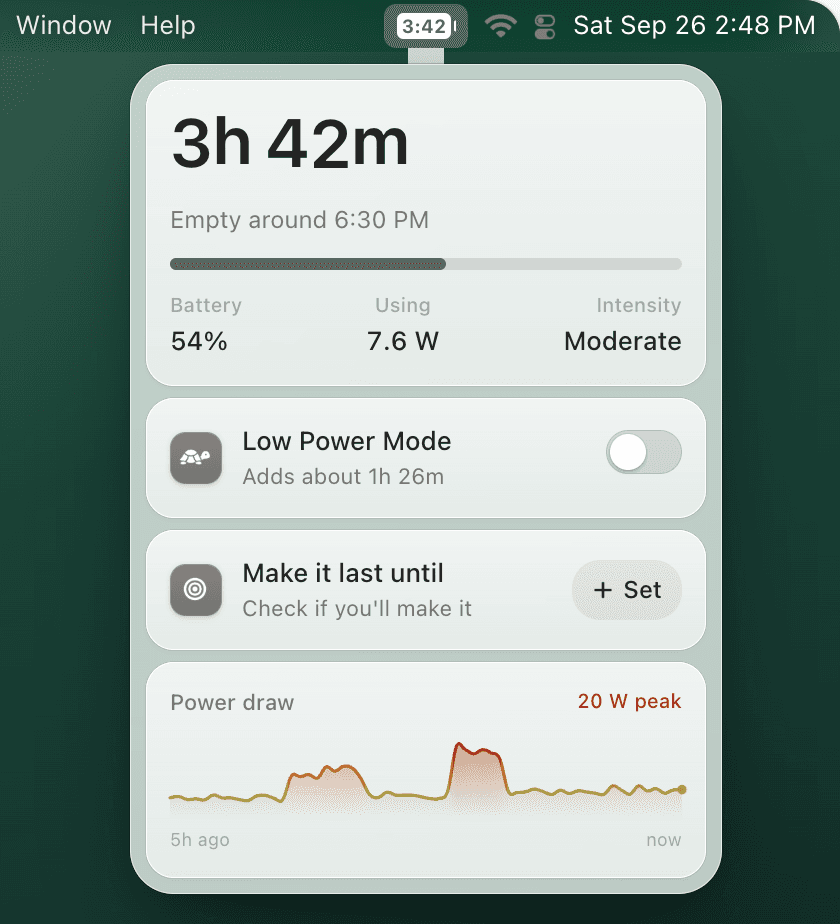
Maximum Capacity and cycle count tell you how much your battery can still hold. They do not tell you whether today's charge gets you through the afternoon. TurtleBar does: it reads what your Mac is really drawing and shows the time left in the menu bar, so an 85% battery stops being a guess.
- 3h 42m in the menu barTime left, or the clock time it will be empty. It adjusts within about a minute when your work changes.
- Make it last until 6 PMSet a time and see On track or Short by, with a one-click fix when you are short.
- Low Power Mode, automaticallyBelow the charge or time left you pick, for chosen apps, or when you will not make your time.
What it does not do: TurtleBar does not measure battery health or cycle count. Use System Settings (steps below) or coconutBattery for that. If health is Normal but the battery still drains fast, read why health can be normal while runtime is bad.
One-time purchase, no subscription. 14-day refund. macOS 13 or later, Apple Silicon and Intel.
Quick answer
How do you check MacBook battery health?
- Battery Health: Apple menu → System Settings → Battery → click the info button next to Battery Health.
- Cycle Count: hold Option → Apple menu → System Information → Power → Cycle Count.
- Official cycle rating: Apple lists most MacBook, MacBook Air, and MacBook Pro models from 2010 onward at 1,000 maximum cycle counts.
- 80% threshold: Apple designs notebook batteries to retain up to 80% of original capacity at the published cycle count under normal conditions. If macOS already shows a warning, read the Apple Service Recommended battery 80% guide.
- Daily runtime: battery health explains long-term condition; TurtleBar shows live time remaining and can trigger Low Power Mode before deep discharge.
If Battery Health says Normal but your MacBook still drains too fast, the problem is usually today's workload, not a replacement battery. TurtleBar adds a menu bar time estimate, low-battery alerts, and automatic Low Power Mode rules for that situation.
After the health check
Turn the battery-health number into the right next action
Most visitors on this page are deciding whether they have a hardware problem, a charging-habit problem, or a daily runtime problem. Use the table below before installing any utility or booking service.
Your battery is probably not the main problem. Workload, brightness, browser tabs, video calls, external displays, or Low Power Mode settings are usually responsible.
Use TurtleBar for live time remaining, earlier Low Power Mode, and low-battery alerts.
The battery is degraded but still usable. Runtime will be shorter than new, so plan around the real hours you get now.
Track actual runtime first; replace only if the shorter sessions hurt your work.
This is a repair or safety path, not an app problem.
Back up the Mac, record cycle count/capacity, and contact Apple or an authorized repair provider.
Long-term battery aging is a charging-habit issue more than a time-remaining issue.
Use Optimized Battery Charging or a charge-limit workflow, then use TurtleBar after you unplug.
This is where TurtleBar fits: menu bar time remaining, Low Power Mode automation, alerts, and app-aware rules.
Use this decision path to avoid the wrong purchase: replace a worn battery when hardware is the issue, use charge-limit tools when plugged in, and use TurtleBar when the daily problem is knowing and extending the charge you have right now.
Model-specific check
MacBook Air, Pro, or Neo: which battery health number matters?
The health workflow is the same on a MacBook Air, MacBook Pro, and MacBook Neo: read Maximum Capacity, Battery Health condition, and Cycle Count. The model matters when you compare cycle count with Apple's published maximum for that MacBook generation.
Most 2010 and newer Air models are listed at 1,000 maximum cycles. If capacity is still high but runtime is short, inspect workload and Low Power Mode before replacing the battery.
Most 2010 and newer Pro models are also listed at 1,000 cycles. Heavy apps, external displays, and browser tabs can make a healthy Pro feel like it has poor battery health.
Apple's cycle-count table lists the MacBook Neo at 1,000 maximum cycles, the same rating as current Air and Pro models, so read its cycle count and capacity the same way.
Pre-2010 models vary by generation, so confirm the exact model in Apple's table before treating a cycle count as “good” or “bad.”
Health vs daily battery decisions
Apple tells you if the battery is aging. TurtleBar helps you use today’s charge better.
If your MacBook battery health is Normal but runtime still feels unpredictable, you probably do not need another health checker. TurtleBar is the practical next step: live menu bar time remaining, automatic Low Power Mode before the battery gets low, and app-aware power rules for a private one-time $4.99 Mac utility.
Result decoder
What your MacBook battery health result means
Use this quick table after you check Battery Health, maximum capacity, and cycle count. It targets the practical question behind searches like “is 80% MacBook battery health bad?” and “Apple battery Service Recommended 80 percent maximum capacity.”
Normal + 90%+ capacity
Healthy battery. If runtime still feels short, the cause is usually workload, screen brightness, or power settings rather than replacement.
Normal + 80–89% capacity
Usable but degraded. Expect shorter sessions; start using Low Power Mode earlier and track real time remaining before meetings or travel.
Service Recommended
Book service if you see short runtime, shutdowns, swelling, heat, or high cycles. Record maximum capacity and cycle count before contacting Apple or a repair shop.
Near 1,000 cycles
Compare cycles with maximum capacity. Many modern MacBooks are rated for 1,000 cycles, but replacement should be based on condition plus real runtime symptoms.
Battery health tells you whether the battery is aging. TurtleBar answers the next daily-use question: how much time is left right now, and when should Low Power Mode turn on?
Apple definition
What does one MacBook battery cycle mean?
Apple defines one battery cycle as using an amount of charge equal to 100% of the battery’s capacity. It does not need to happen from 100% down to 0% in one sitting. For example, using 50% of your MacBook battery today and another 50% tomorrow counts as one full cycle.
That is why cycle count is useful for long-term battery age, but it is not the same as today’s runtime. A MacBook can have a normal cycle count and still run short because of screen brightness, heavy apps, meetings, travel, or Low Power Mode settings.
After the health check
If battery health looks normal but runtime is bad, solve the daily-use problem
Apple’s Battery Health screen helps you decide whether the battery needs service. It does not answer the buyer-intent question most MacBook owners have next: “Will this charge last through my meeting, flight, or café session?” TurtleBar fills that gap with menu bar time remaining, automatic Low Power Mode, and app-aware power rules for a one-time $4.99 purchase.
Service answer
Does Service Recommended mean your MacBook battery is below 80%?
Not automatically. Apple's battery guidance connects two ideas: most recent MacBook models have a published maximum cycle count of 1,000 cycles, and notebook batteries are designed to retain up to 80% of original capacity at that cycle count under normal use. macOS can show Service Recommended when diagnostics decide the battery needs service, which often lines up with low maximum capacity, high cycles, sudden shutdowns, heat, swelling, or poor runtime.
Treat 80% maximum capacity as a serious replacement checkpoint, not the only rule. Before booking service, record your maximum capacity, cycle count, Battery Health condition, and how long the Mac lasts in your normal workload. If the battery is still safe but runtime is the problem, Low Power Mode automation and time-remaining alerts can reduce surprise shutdowns while you plan the replacement.
Common confusion
Battery health vs cycle count: check both before replacing anything
Shows how much charge your battery can hold compared with when it was new. This is the number behind the 80% replacement threshold many MacBook owners search for.
Shows cumulative battery use. Apple lists most 2010+ MacBook models at 1,000 maximum cycles, but real runtime can feel short before or after that number.
Best workflow: check battery health percentage, confirm Apple’s official MacBook battery cycle count and 1,000-cycle table, then use TurtleBar to watch actual time remaining during your normal day.
Google quick answer
MacBook battery health: what to check first
System Settings → Battery → Battery Health. Look for Normal, Service Recommended, and maximum capacity.
Option-click Apple menu → System Information → Power. Most 2010+ MacBooks use Apple’s 1,000-cycle reference.
Capacity and cycles explain aging; TurtleBar shows whether today’s charge will last through your actual work.
If you searched “Apple MacBook battery cycle count official support,” the official context is: verify your exact model in Apple’s cycle-count table, then compare that number with Battery Health, maximum capacity, and real unplugged runtime before deciding on replacement. For the dedicated answer, open the Apple MacBook battery cycle count guide.
Snippet-ready answer
What MacBook battery health percentage is good?
Normal for a healthy MacBook battery. Expect good runtime unless your workload is heavy.
Still usable, but unplugged sessions get shorter. Use Low Power Mode earlier and track real time remaining.
Apple’s common service threshold. Consider replacement if battery life is important.
Percentage is only one signal. A MacBook at 88% with 350 cycles can be fine; a MacBook at 88% that dies during a commute still needs a runtime plan. Check time remaining and automate Low Power Mode before judging the battery by percentage alone.
After you check cycles
Cycle count tells long-term wear. TurtleBar helps with today’s runtime.
A healthy cycle count does not guarantee your Mac will last through a meeting, flight, or café work session. Use TurtleBar to keep battery time remaining visible, trigger Low Power Mode before you hit a danger zone, and avoid unnecessary deep discharges that age the battery faster.
Official support answer
Apple MacBook battery cycle count: 1,000 cycles and 80% capacity
If you are looking for Apple's official support rule: most MacBook, MacBook Air, and MacBook Pro models introduced in 2010 or later are listed at 1,000 maximum cycle counts. Apple's notebook batteries are designed to retain up to 80% of original capacity at that cycle count under normal conditions.
Use that as a context check, not a panic line. A MacBook at 850 cycles with 87% capacity and “Normal” condition is usually fine; a MacBook at 420 cycles with 78% capacity or “Service Recommended” deserves closer attention. For the model-specific table, verify the exact Mac model on Apple's “Determine battery cycle count for Mac notebooks” support page.
Service Recommended at 80%
Apple Battery Service Recommended and 80% maximum capacity: what it means
If your Mac says Service Recommended near 80% maximum capacity, it usually means the battery has lost enough usable capacity that replacement is worth considering. Apple’s public battery guidance uses 80% of original capacity at the published cycle count as the normal design reference, while macOS uses its own diagnostics to decide when to show the service label.
For a purchase or repair decision, combine four facts: maximum capacity, cycle count, Battery Health condition, and real-world time remaining. TurtleBar helps with the last one by keeping runtime visible and enabling Low Power Mode automatically before deep discharge.
2-minute checklist
What to record when you check battery health
A single “Normal” label does not tell the whole story. Write down these four values so you can compare them again next month:
Tip: if capacity is still healthy but runtime is poor, the problem is usually workload, background apps, display brightness, or missing Low Power Mode automation, not necessarily a failing battery.
Health scorecard
MacBook battery health: what your number means
Use maximum capacity, cycle count, and the macOS condition together. Any one number by itself can be misleading.
Fast diagnosis
Is your MacBook battery health good or bad?
90%+ maximum capacity, condition says Normal, and runtime still covers your normal work session.
80-89% capacity, 700+ cycles, or noticeably shorter runtime. Use Low Power Mode earlier and avoid deep discharges.
Below 80%, Service Recommended, sudden shutdowns, or runtime that no longer supports your daily work.
If the battery is technically healthy but your Mac dies before meetings, flights, or café sessions, TurtleBar is the practical next step: it keeps time remaining visible and can trigger Low Power Mode before the battery reaches a risky level.
Apple official guidance
What is Apple's official MacBook battery cycle count?
Apple's battery cycle-count support table lists the maximum cycle count for each Mac notebook model. For most MacBook, MacBook Air, and MacBook Pro models introduced in 2010 or later, the official rating is 1,000 cycles. Older models can be rated for 300 or 500 cycles depending on generation.
Apple guidance updated June 2026
Apple's current Apple silicon battery-health guidance still emphasizes macOS battery health management and chemical aging. Use Apple's Battery Health status for service diagnostics, the cycle-count table for model-specific wear context, and TurtleBar for the day-to-day question Apple does not answer directly: how much usable time is left in this session?
A cycle is not the same as one charger plug-in. If you use 40% of your battery today, recharge, then use 60% tomorrow, that adds up to one cycle. Apple's design target is that a notebook battery can retain up to 80% of original capacity at its maximum cycle count under normal use.
Sources to verify your exact model and current macOS behavior: Apple's official Determine battery cycle count for Mac notebooks table and battery health management for Mac laptops with Apple silicon support page.
Official support summary
MacBook battery cycle count: what number should you expect?
For Apple support searchers
Official Apple MacBook battery cycle count answer
If your search is “Apple MacBook battery cycle count 1000 official support,” the practical answer is: Apple’s notebook support table is the source of truth for each model, and the common rating for most 2010-or-newer MacBook Air and MacBook Pro models is 1,000 cycles. Apple’s battery-health language pairs that rating with retaining up to 80% of original capacity under normal conditions.
How to Check MacBook Battery Health
macOS provides basic battery health information through System Settings. Here is how to access it:
Method 1: System Settings (Quick Check)
- Click the Apple menu and select System Settings
- Click Battery in the sidebar
- Click the info (i) button next to Battery Health
- You will see your battery condition: Normal or Service Recommended
Method 2: System Information (Detailed)
- Hold Option and click the Apple menu
- Select System Information
- Click Power in the sidebar under Hardware
- Look for: Cycle Count, Condition, Full Charge Capacity, and Maximum Capacity
This gives you the most detailed view macOS provides, including the exact cycle count and capacity numbers.
Method 3: Terminal Command
Run this command for a quick cycle count check:
ioreg -l | grep -i "CycleCount"For maximum capacity percentage:
ioreg -l | grep -i "MaxCapacity\|DesignCapacity"Understanding Battery Cycle Count
A battery cycle is completed when you use an amount of power equal to 100% of your battery capacity. This does not have to happen in a single charge. For example, using 50% today and 50% tomorrow counts as one cycle.
Apple rates most MacBook batteries from 2010 onward, including the MacBook Neo, for 1,000 charge cycles, designed to keep up to 80% of original capacity at that count. As a rough guide:
- 0-300 cycles: Battery should be at 95-100% of original capacity
- 300-500 cycles: Battery typically at 90-95% capacity
- 500-800 cycles: Battery at 85-90% capacity
- 800-1000 cycles: Battery at 80-85% capacity
- 1000+ cycles: Battery may drop below 80%, "Service Recommended" may appear
These bands are a rough guide, not Apple figures: heat, charging habits, and age move real batteries up or down, so trust your own Maximum Capacity over the table.
Search intent answer: is your cycle count “good”?
Searchers often type only the number they found in System Information, for example “142 cycle count,” “756 battery cycles,” or “1021 MacBook cycles.” For most 2010-or-newer MacBooks, interpret those numbers against Apple’s common 1,000-cycle rating and your maximum capacity percentage.
Is 800 Cycle Count Bad on a MacBook?
An 800 cycle count is not automatically bad. On a modern MacBook with a 1,000-cycle Apple rating, 800 cycles means the battery is well used but still within the designed service window. The more important number is maximum capacity: 800 cycles with 86-90% capacity can still feel normal, while 800 cycles near 80% capacity may mean noticeably shorter runtime.
If your Mac shows “Service Recommended,” shuts down unexpectedly, or no longer lasts through your normal work session, treat that as more important than the cycle number alone. If it still says Normal, use a lighter charging routine, avoid heat, and use Low Power Mode before deep discharge.
Battery Condition Meanings
macOS shows one of two battery conditions:
- Normal: Your battery is functioning within normal parameters. It may have lost some capacity from its original level, but it is still performing adequately.
- Service Recommended: Your battery has significantly degraded. It still works, but you will notice shorter battery life than when the Mac was new. Apple recommends having it serviced. This typically appears when the battery drops below approximately 80% of its design capacity. If you see the warning now, use the MacBook Service Recommended battery guide to decide whether to replace immediately or monitor runtime.
How to Preserve MacBook Battery Health
Lithium-ion batteries degrade through use, heat, and extreme charge states. Here are proven strategies to slow degradation:
1. Use Optimized Battery Charging
macOS learns your daily charging routine and delays charging past 80% until you need it. This reduces the time your battery spends at 100%, which causes accelerated wear. Enable it in System Settings > Battery > Battery Health.
2. Avoid Extreme Temperatures
Heat is the enemy of lithium-ion batteries. Apple recommends operating your MacBook between 10 and 35 degrees Celsius (50 to 95 degrees Fahrenheit). Avoid using your Mac in direct sunlight or on soft surfaces that block ventilation.
3. Use Low Power Mode Strategically
Low Power Mode reduces CPU/GPU performance and background activity, which generates less heat and uses fewer charge cycles for the same amount of work. Using TurtleBar to auto-toggle Low Power Mode at a battery threshold like 40% means less deep discharging, which preserves battery health over time.
4. Avoid Deep Discharges
Regularly draining your battery to 0% stresses the cells more than shallow discharge cycles. Try to keep your battery between 20% and 80% for most of the time. If you regularly run your Mac to very low battery levels, TurtleBar's battery triggers can warn you before you hit critical levels.
5. Update macOS
Apple frequently includes battery management improvements in macOS updates. These can include better charging algorithms, improved power management, and bug fixes that reduce unnecessary battery drain.
6. Store at 50% if Not Using for Extended Periods
If you will not use your MacBook for weeks or months, Apple recommends storing it at approximately 50% charge in a cool, dry environment. Storing at 100% for long periods accelerates capacity loss, and storing at 0% can cause the battery to enter a deep discharge state.
MacBook Battery Replacement
When your battery health has degraded significantly, replacement is the only fix. Here are your options:
- Apple Store or Authorized Service Provider: The safest option. The price depends on your model; Apple shows it on its Mac battery service page. Covered under AppleCare+ if you have it.
- Apple Mail-in Service: Ship your Mac to Apple for battery replacement. Takes 3-5 business days typically.
- Third-party repair: Often cheaper, but may use non-Apple batteries. Check reviews and warranties carefully.
Signs it is time for replacement: battery life is less than half of what it was when new, your Mac shuts down unexpectedly at 10-20% battery, or System Settings shows "Service Recommended."
Replacement decision log
Before you pay for a new MacBook battery, record these six facts
Searchers often jump from “battery health” straight to replacement. A better decision is to compare Apple’s cycle-count guidance with how the Mac behaves in real life. Copy this short log into Notes, fill it in, and re-check after a normal workday.
If the health numbers look acceptable but runtime is still unpredictable, TurtleBar is the lower-cost first step: keep time remaining visible, set low-battery alerts, and trigger Low Power Mode before deep discharge. If the numbers are poor and symptoms are real, use the log when talking to Apple or an authorized repair provider.
Monitoring Battery Health Over Time
macOS provides basic battery condition information, but it does not track changes over time. For historical tracking, you have two main options:
- coconutBattery: The most popular battery health monitor for Mac. Shows design capacity vs. current capacity, charge history, and trends. See our comparison of battery apps.
- Manual logging: Check System Information periodically and note your cycle count and maximum capacity.
While battery health monitoring tells you about long-term degradation, knowing your real-time battery time remaining is equally important for day-to-day use. TurtleBar handles the daily side: a live time-remaining estimate, automatic Low Power Mode, and per-app power rules.
Frequently Asked Questions
How do I check my MacBook battery health?
Go to Apple menu > System Settings > Battery and click the info (i) button next to Battery Health. You will see the condition (Normal or Service Recommended) and Maximum Capacity. For cycle count, hold Option, click the Apple menu, choose System Information, then Power.
What does Normal battery health mean on a MacBook?
Normal means macOS sees no problem with the battery and it is working as expected for its age. It does not mean 100%: a Normal battery can have lost some capacity, so check the Maximum Capacity percentage next to it for the detail.
What is a good MacBook battery health percentage?
90% or higher is generally good for a MacBook in everyday use, 80-89% means runtime will be noticeably shorter, and below 80% is replacement territory if unplugged battery life matters. Always combine percentage with cycle count, Battery Health condition, and real runtime.
What is a good battery cycle count for a MacBook?
Judge it against Apple's rating: most MacBook Air, MacBook Pro, and MacBook Neo models are rated for 1,000 cycles. A few hundred cycles is low, up to about 800 is normal wear, and near or past 1,000 the battery is at the end of its rated life. Maximum Capacity tells you more than the count alone.
How many battery cycles does a MacBook last?
Apple rates most MacBooks from 2010 onward, including the MacBook Neo, for 1,000 cycles, and designs the battery to keep up to 80% of its original capacity at that count. The battery keeps working after 1,000 cycles, but it holds less charge.
What is Apple's battery cycle definition for a MacBook?
Apple defines one battery cycle as using an amount of charge equal to 100% of the battery's capacity. It does not have to happen in one session: using 50% today and 50% tomorrow counts as one cycle.
Where is Apple's official MacBook battery cycle count page?
Apple's support article Determine battery cycle count for Mac laptops lists the maximum cycle count for every model. Most MacBook Air, MacBook Pro, and MacBook Neo models are listed at 1,000 cycles.
Is MacBook battery health the same as cycle count?
No. Battery health or maximum capacity estimates how much charge the battery can hold compared with when it was new. Cycle count measures cumulative battery use. A useful MacBook battery check looks at both, plus Battery Health condition and real unplugged runtime.
Is 756 or 1021 battery cycles bad on a MacBook?
756 cycles is not automatically bad on a modern MacBook; it is an expected-wear zone if maximum capacity is still above about 80% and Battery Health says Normal. 1021 cycles is past Apple’s common 1,000-cycle rating for most 2010-or-newer MacBooks, so plan for replacement if capacity is near or below 80%, Service Recommended appears, or runtime no longer supports your work.
Is 80% battery health bad on a MacBook?
80% maximum capacity is the common service threshold Apple references for notebook batteries. It does not mean your Mac is unsafe or unusable; it means you should expect shorter runtime and may want a battery replacement if unplugged battery life matters.
What does Service Recommended mean for a Mac battery?
It means macOS diagnostics think the battery needs service, usually because it holds noticeably less charge than when new. The Mac still works, with shorter battery life. It often lines up with capacity near or below 80%, but not always, so check Maximum Capacity, cycle count, and symptoms, then contact Apple or an authorized service provider.
Does keeping my MacBook plugged in damage the battery?
With Optimized Battery Charging enabled (the default on modern macOS), your Mac learns your routine and avoids keeping the battery at 100% unnecessarily. If your Mac stays plugged in all the time, a charge limit (the Charge Limit setting on recent macOS, or an app like AlDente) or regular use on battery helps long-term health.
What should I record before replacing a MacBook battery?
Record Battery Health condition, maximum capacity, cycle count, real unplugged runtime, and any symptoms such as sudden shutdowns, heat, swelling, or Service Recommended. Replace when low capacity or high cycles line up with real runtime problems.
Related guides:
Know exactly when your Mac battery dies
Battery health tells you long-term condition. TurtleBar tells you right now: when your battery dies, in real-time. $4.99 one-time.