Updated September 26, 2026 · By Soren Starck
Low Power Mode Shortcut on Mac: 5 Fast Ways to Turn It On
Macs have no built-in keyboard shortcut for Low Power Mode. The fastest built-in toggle is the battery icon in the menu bar, which shows a Low Power Mode switch on recent macOS versions. You can also run sudo pmset -a lowpowermode 1 in Terminal, or build your own key combination in the Shortcuts app.
The 5 ways at a glance
| Way | Effort | Password | Needs |
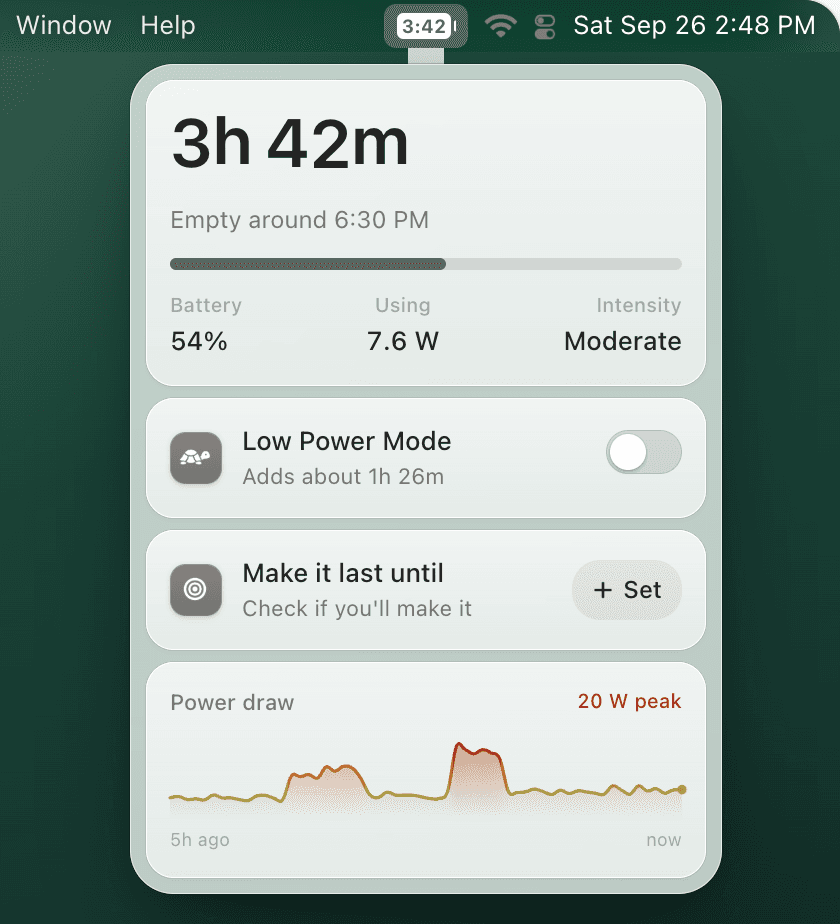
|---|---|---|---|
| 1. Battery menu | 2 clicks | No | A recent macOS version |
| 2. Spotlight | A few keys, then 2 clicks | No | macOS Monterey or later |
| 3. Terminal | One command | Yes | macOS Monterey or later |
| 4. Your own key combo | One key combination | Usually, each time | The Shortcuts app |
| 5. TurtleBar switch | 2 clicks | Once, at setup | macOS 13 Ventura or later |
Every shortcut still depends on you remembering. TurtleBar can also switch Low Power Mode on for you at the battery level you choose.
1. The battery menu or Control Center
On recent macOS versions, click the battery icon in the menu bar (or Battery in Control Center) and click Low Power Mode. Click it again to turn it off. If there's no switch there, your macOS version doesn't show it in that menu: use one of the other ways, or check Low Power Mode not showing on Mac.
On MacBook Pro models with an Energy Mode setting, macOS Sequoia 15.1 and later let you pick Low Power from Control Center instead.
2. Spotlight straight to the setting
Press Command-Space, type Low Power Mode and open the Battery setting from the results. System Settings opens on the Battery page, where you choose Always or Only on Battery from the Low Power Mode menu. If it doesn't show up, type Battery instead. Slower than a toggle, but it works on every Mac that has the feature.
3. One command in Terminal
sudo pmset -a lowpowermode 1   # turn on
sudo pmset -a lowpowermode 0   # turn off
pmset -g | grep lowpowermode   # check: 1 means on
Enter your administrator password when asked. -a changes the setting for battery and power adapter; use -b to change only the on-battery setting.
4. Build your own keyboard shortcut
The Shortcuts app can run that command and give it a key combination, which is the closest thing to a real Low Power Mode shortcut:
- Allow scripts. Open the Shortcuts app, choose Shortcuts > Settings, click Advanced and turn on Allow Running Scripts.
- Create the shortcut. Click the + button to make a new shortcut and name it Toggle Low Power Mode.
- Add the script. Add a Run Shell Script action, paste the toggle script below, and turn on Run as Administrator in the action's options.
- Assign the keys. Open the shortcut's details with the info (i) button, click Add Keyboard Shortcut and press the keys you want, such as Control-Option-L.
- Use it. Press your key combination from any app. Enter your administrator password when macOS asks.
if pmset -g | grep -q "lowpowermode *1"; then
  pmset -a lowpowermode 0
else
  pmset -a lowpowermode 1
fi
The script reads the current state and flips it, so one key combination turns Low Power Mode on and off. Because it changes a system setting, macOS will usually ask for your password each time. If your Shortcuts version has no Run as Administrator option, use a Run AppleScript action with do shell script "pmset -a lowpowermode 1" with administrator privileges instead.
5. A Low Power Mode switch that tells you what it's worth
TurtleBar sits in the menu bar with your battery time remaining. Click it and the popover has a Low Power Mode switch labelled with what it would add on your Mac right now, such as "Adds about 1h 10m". It asks for administrator permission once, at setup, not every time you flip it.
Two clicks, no password prompts, and you can see whether it's worth turning on before you do. $4.99 once, 14-day refund.
Better than a shortcut: not needing one
A shortcut only helps if you remember to press it, and most people remember Low Power Mode at the 10% warning, when it adds the least time. If you keep reaching for it at the same moments, a rule does it for you: below 30%, when less than an hour is left, or when a video call starts.
Make it automatic
Let Low Power Mode switch on before you need a shortcut.
TurtleBar turns Low Power Mode on when the battery drops below the level you pick, when time left runs low, or when your Mac won't make it to a time you set, and back off when you charge. Each switch tells you why.
Frequently asked questions
Is there a keyboard shortcut for Low Power Mode on Mac?
No. macOS has no default keyboard shortcut for Low Power Mode. You can make one in the Shortcuts app: a Run Shell Script action that toggles pmset, with a key combination assigned to it.
What is the fastest way to turn on Low Power Mode on Mac?
Click the battery icon in the menu bar and click Low Power Mode, if your macOS version shows it there. Otherwise press Command-Space, type Low Power Mode and open the Battery setting from the results.
Can I add Low Power Mode to Control Center or the menu bar?
On recent macOS versions the battery menu and the Battery item in Control Center can show it. Macs with Energy Mode, such as some MacBook Pro models, can switch modes from Control Center from macOS Sequoia 15.1. A menu bar app such as TurtleBar adds its own switch.
Why does my Low Power Mode shortcut ask for a password?
Changing Low Power Mode from a script uses pmset, which needs administrator rights. macOS asks for your password so nothing can change power settings without your permission.
How do I turn Low Power Mode on or off with Terminal?
Run sudo pmset -a lowpowermode 1 to turn it on or sudo pmset -a lowpowermode 0 to turn it off, and enter your password. Run pmset -g | grep lowpowermode to check the current value.
Can Low Power Mode turn on by itself instead?
Not at a percentage from System Settings. On macOS Tahoe 26 or later a Shortcuts automation can do it with a script, and TurtleBar can turn it on below a battery level, when time left runs low, or when you won't make it to a set time.