Updated September 26, 2026 · By Soren Starck
How to make your MacBook battery last longer
Three things decide most of how long a charge lasts: what you're doing, how bright the screen is, and whether Low Power Mode is on. A video call draws about three times the power of writing an email. Fix those three first, then hunt down whatever is draining power in the background. Everything else on most tip lists adds minutes, not hours.
The short version
- Dim the screen to the lowest level you're comfortable with.
- Set Low Power Mode to Only on Battery, or have it switch on early by itself.
- Open Activity Monitor > Energy and quit what sits at the top without a reason.
- Unplug peripherals, eject SD cards, and close video calls and tabs you're done with.
- Keep the Mac between 10 and 35 °C and on the latest macOS.
Where the power goes: your workload decides most of it
The same full charge lasts very different times depending on the work. These are estimates for a MacBook Air 13-inch (52.6 Wh) at a comfortable brightness, from the same model as our battery life calculator. Apple's ratings are measured in lab conditions and are higher.
| What you're doing | Full charge | With Low Power Mode |
|---|---|---|
| Writing, notes, email | 15h 2m | 18h 47m |
| Streaming video | 11h 41m | 14h 37m |
| Web browsing | 9h 34m | 11h 57m |
| Video calls | 5h 16m | 6h 35m |
| Coding and builds | 3h 17m | 4h 7m |
| Photo or video export | 2h 23m | 2h 59m |
The lesson: moving an export or a long build to when you're plugged in does more than any setting. The rest of this guide is about getting the most out of whatever work you have to do on battery.
1. Find out what is draining it right now
Before changing settings, look for the thing that's actually using the power. Often it's one app you forgot about.
- Open Activity Monitor (Spotlight: type "Activity Monitor") and click the Energy tab.
- Sort by Energy Impact for what's using power now, or by 12 hr Power for the average over the last 12 hours.
- Check the Preventing Sleep column: an app marked Yes can keep your Mac awake with the lid open.
- Quit what you don't need. For a browser, close the heavy tab rather than the whole app.
System Settings > Battery also shows the battery level and Screen On Usage for the last 24 hours, and Energy Usage for the last 10 days, which helps spot a day that drained faster than usual. The usual suspects are browser tabs with video or live dashboards, video call apps left running, sync after an update, and developer tools. Our guides to battery usage by app and fixing fast battery drain go deeper.
2. Dim the screen, and let it switch off sooner
Apple's own advice is to "dim the screen to the lowest comfortable level to achieve maximum battery life." On light work the display is one of the largest single draws, so this is often the biggest change you control.
- System Settings > Battery > Options: turn on Slightly dim the display on battery, and Optimize video streaming while on battery, which plays HDR video in standard dynamic range.
- System Settings > Displays: turn on Automatically adjust brightness.
- System Settings > Lock Screen: shorten Turn display off on battery when inactive.
- Turn the keyboard backlight down in dim rooms; it's a small draw, but it's free to save.
3. Use Low Power Mode, and turn it on early
Low Power Mode reduces your Mac's energy use, mostly by running the chip at lower speeds. Everyday work like writing, browsing and calls feels about the same; exports and builds take longer. Set it in System Settings > Battery > Low Power Mode: Only on Battery is the right choice for most people. Some MacBook Pros show an Energy Mode menu instead. The full walkthrough is in our Low Power Mode guide.
Timing matters more than most people think. Low Power Mode stretches the charge you have left, so switching it on at 80% adds far more than switching it on at 20%, when macOS starts warning you. Estimates for web browsing on a MacBook Air:
| Turned on at | Time left without it | With it | Time added |
|---|---|---|---|
| 80% | 7h 39m | 9h 34m | +1h 55m |
| 50% | 4h 47m | 5h 59m | +1h 12m |
| 20% | 1h 55m | 2h 23m | +29m |
macOS can't switch Low Power Mode on at a battery level you choose from System Settings. On macOS Tahoe, a Shortcuts automation with the Battery Level trigger can, as our automatic Low Power Mode guide shows step by step.
See what each change buys you
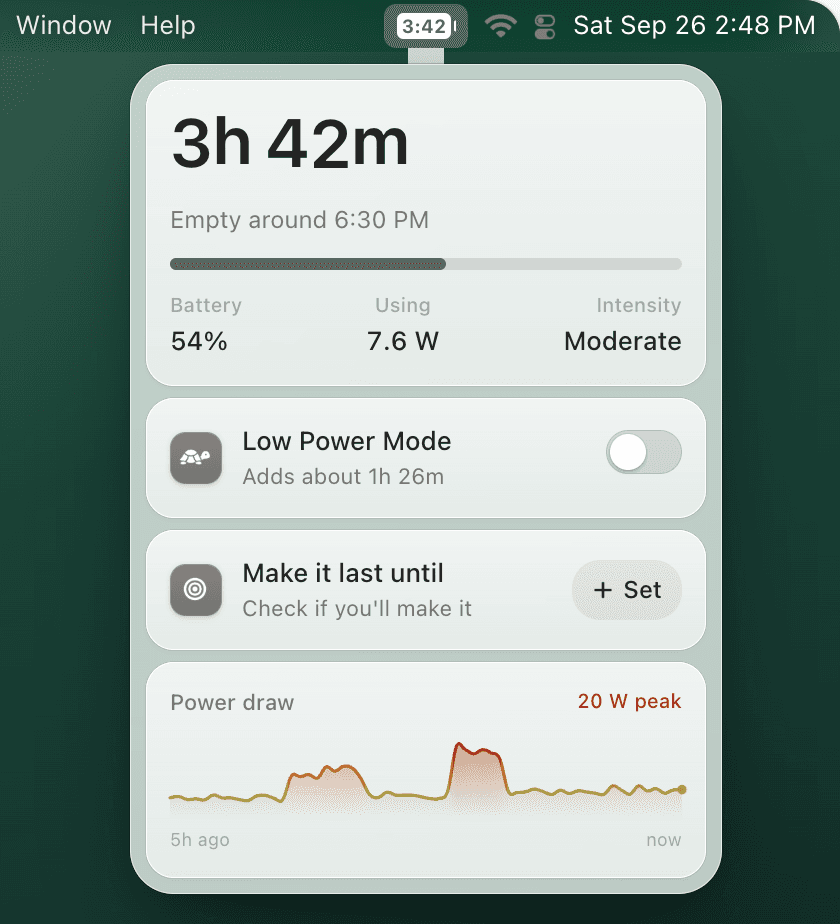
TurtleBar keeps a countdown of the time your Mac has left in the menu bar, so dimming the screen or closing a heavy tab shows up as minutes gained, within about a minute. It lists the five apps using the most power, in watts and in minutes of runtime. And it switches Low Power Mode on for you: below a charge or a time left you pick, when your Mac won't make a time you set, after idle minutes, or for specific apps. It never undoes a change you made yourself.
4. Stop what runs in the background
- Quit apps you're not using. Apple's advice for MacBooks is to "quit applications not in use." Video call apps, browsers with many tabs and developer tools matter most; a quiet notes app barely registers.
- Check background items. System Settings > General > Login Items & Extensions lists apps allowed to run in the background. Turn off the ones you don't need.
- Mind your browser. Tabs with video, animations or live data keep working in the background. Close them, or compare browsers with our Safari vs Chrome battery guide.
5. Unplug what you don't need
Apple recommends that you "disconnect peripherals" and "eject an SD card if you're not currently accessing it." An external display, a phone charging from your Mac or a USB drive all draw from the battery. Wi-Fi uses power even when it isn't connected to a network, so on a plane with no Wi-Fi, turning it off helps a little.
6. Keep it cool and up to date
Apple says MacBooks work best at 10 to 35 °C (50 to 95 °F), and heat also ages the battery faster. Don't leave it in a hot car or work with it on a blanket. Apple also recommends always running the latest macOS; after a big upgrade, give it a day to finish indexing before you judge battery life.
Longer today vs a battery that lasts for years
Charging habits don't change how long today's charge lasts; they change how fast the battery wears. On Apple silicon with macOS Tahoe 26.4 or later you can set a Charge Limit between 80% and 100% in System Settings > Battery, and Optimized Battery Charging delays charging past 80% when macOS expects you to stay plugged in. See our guides to the 80% Charge Limit and battery health.
A lower limit also means you start each day with less charge. That makes knowing how long you actually have, and saving power early, matter more.
Questions
How can I make my MacBook battery last longer?
Start with the three things that decide most of it: what you're doing (a video call draws about three times what writing does), how bright the screen is, and whether Low Power Mode is on. Then find anything draining power in the background with Activity Monitor's Energy tab, and disconnect peripherals you aren't using. Turning Low Power Mode on early, not at 10%, gives it the most charge to stretch.
Does Low Power Mode really make a MacBook battery last longer?
Yes. It lowers the Mac's energy use, mostly by running the chip at lower speeds, so the same charge lasts longer. The gain depends on the workload; a reduction of around 20% in power draw, or about a quarter more time, is a fair middle for everyday work. Heavy tasks run slower while it is on.
Why is my MacBook battery suddenly draining so fast?
Usually an app or process working in the background: a stuck browser tab, a sync after an update, a video call app that never quit, or Spotlight indexing after a macOS upgrade. Open Activity Monitor, click Energy, and sort by 12 hr Power to find it. If the battery's Maximum Capacity is also well below 80%, wear is part of it.
Does dimming the screen really save battery?
Yes. Apple's own advice is to dim the screen to the lowest comfortable level for maximum battery life. On light work like writing or browsing, the display is one of the largest single draws, so brightness is often the biggest change you control.
Does keeping my MacBook plugged in make the battery last longer?
It doesn't change how long a charge lasts today; it affects how fast the battery wears over the years. On Apple silicon with macOS Tahoe 26.4 or later you can set a Charge Limit between 80% and 100% in System Settings > Battery. Optimized Battery Charging also delays charging past 80% when macOS expects you to stay plugged in.
How many hours should a MacBook battery last?
It depends far more on the work than on the model. As an estimate, a full MacBook Air 13-inch lasts about 15h 2m of writing, 9h 34m of web browsing and 5h 16m on video calls at a comfortable brightness. Apple's ratings are measured in lab conditions and are higher. The battery life calculator gives the figure for your model, charge and work.
Know how long you have, and make it longer
TurtleBar puts the time left in your menu bar and turns Low Power Mode on before you run out. $4.99 once.