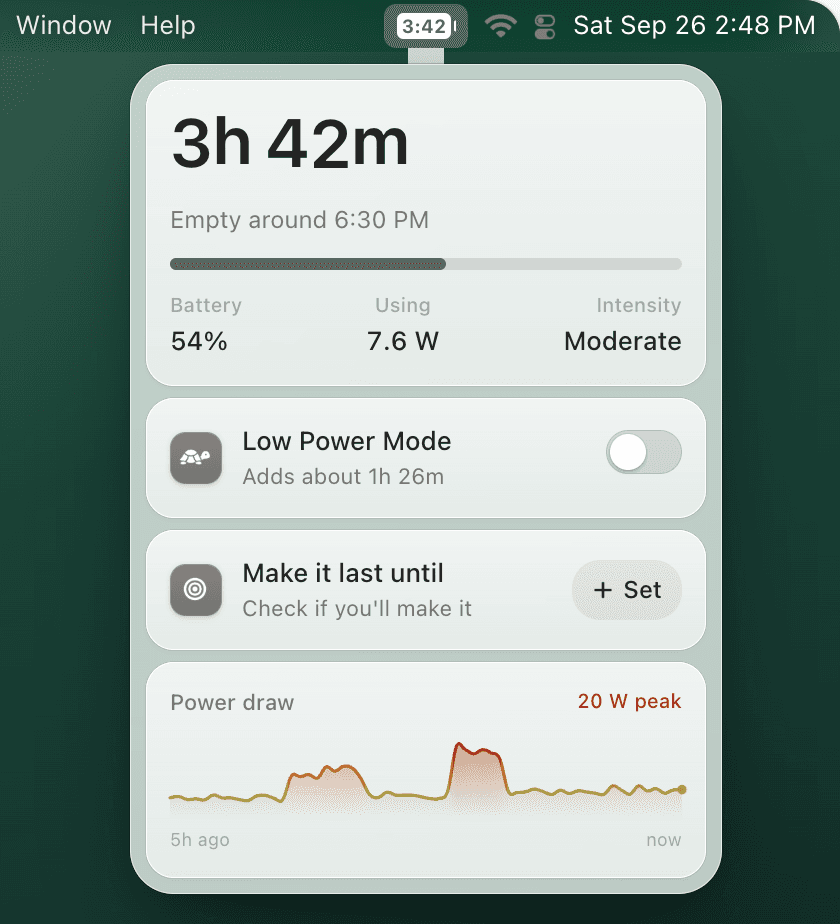
MacBook Battery Usage by App: Find What Is Draining Your Mac
If your MacBook battery suddenly drops, do not start by guessing. macOS can show which apps are using the most energy right now, and TurtleBar can help when the same heavy apps keep draining your battery before you remember to change settings.
Quick answer
Use Battery settings for history and Activity Monitor for live app drain
- Open System Settings → Battery and check the recent usage chart.
- Open Activity Monitor → Energy.
- Sort by Energy Impact for current drain.
- Sort by 12 hr Power to catch apps that drained the battery earlier.
- When the same app is always high, close tabs, disable background work, or use an automatic Low Power Mode rule.
Have repeat offenders like Zoom, Chrome, Figma, or games? TurtleBar can switch Low Power Mode on for those apps automatically.
How to check MacBook battery usage by app
macOS separates battery history from live app energy. Battery settings are useful for spotting the time window when drain happened, while Activity Monitor is better for finding the specific process causing it right now.
1. Check Battery settings first
Go to System Settings → Battery. Look for unusual drops, screen-on time, and whether the battery fell while you expected the Mac to be idle. If the chart shows a steep drop during a meeting, export, browser session, or game, that gives you the investigation window.
2. Open Activity Monitor's Energy tab
Open Activity Monitor from Applications → Utilities, then click Energy. Sort by Energy Impact to see what is draining power now. Sort by 12 hr Power to find apps that used a lot of energy earlier in the day.
3. Look beyond the app name
The draining item is not always the visible app. Browser helper processes, video calls, cloud sync, menu bar utilities, and Electron apps can sit at the top of Energy Impact. If Chrome, Arc, or Safari is high, check tabs that are running video, maps, dashboards, or web apps in the background.
What to do when an app is draining your Mac battery
| Symptom | Likely cause | Best fix |
|---|---|---|
| Browser is always high | Video, ads, dashboards, many tabs | Close heavy tabs, disable extensions, use Low Power Mode while unplugged |
| Zoom or Teams spikes | Camera, screen sharing, noise processing | Lower video quality and automate Low Power Mode for meetings |
| Battery drops during sleep | Wake activity, sync, external devices | Review wake sources and read the overnight battery drain guide |
| Energy Impact is low but runtime is short | Battery wear or display brightness | Check battery health, capacity, and cycle count |
When per-app Low Power Mode helps
Low Power Mode reduces background activity and power draw, but macOS makes it a global manual setting. That is easy to forget until the battery is already low. A better workflow is to trigger Low Power Mode when known heavy apps open, or when the battery falls below your chosen threshold.
TurtleBar is built for that gap: it shows battery time remaining in the menu bar and can enable Low Power Mode for specific apps or battery percentages. It is most useful when you already know which apps drain your Mac but want the fix to happen automatically.
Stop manually chasing battery-draining apps
Use TurtleBar to show time remaining and turn on Low Power Mode for repeat battery hogs. One-time $4.99.