MacBook Optimized Battery Charging: What It Does, Why It Pauses at 80%, and How to Fix It
Optimized Battery Charging is one of Apple's built-in ways to reduce battery aging on MacBooks. It is helpful, but it can be confusing when your Mac stops charging at 80%, refuses to learn your schedule, or still does not tell you how long the battery will last. This guide explains the setting and the practical workflow around it.
Quick answer
Should you leave Optimized Battery Charging on?
Yes, most MacBook owners should leave it on. It helps reduce time spent at 100% charge, which can slow battery wear. If you need a full battery before travel, meetings, or class, choose the macOS option to charge to full now rather than disabling the feature forever.
What Optimized Battery Charging does
MacBooks use lithium-ion batteries that age faster when they spend a lot of time hot or fully charged. Optimized Battery Charging, available since macOS Big Sur 11, uses on-device learning to figure out when you usually unplug. When macOS thinks your Mac will stay plugged in for a while, it may delay charging past 80% and finish later.
The feature is different from a strict charge limiter. It is adaptive: sometimes your Mac charges to 100%, sometimes it pauses near 80%, and the behavior can change after travel, schedule changes, macOS updates, or a new Mac setup. If you want a fixed ceiling instead, Macs with Apple silicon running macOS Tahoe 26.4 or later have a separate Charge Limit setting, covered below.
How to check the setting on macOS
- Open System Settings.
- Choose Battery.
- Open battery health or options, depending on your macOS version.
- Look for Optimized Battery Charging and keep it enabled unless you have a specific reason to turn it off.
If your Mac says charging is paused, macOS usually provides a way to charge to full now. Use that for one-off needs instead of turning battery optimization off permanently.
Why your MacBook is paused at 80%
A charging pause around 80% is normally expected behavior. It means macOS is trying to avoid keeping the battery full for hours. This is especially common if your MacBook spends most of the day plugged into a desk setup or external display. If the battery menu says “Charged to 80% Limit” rather than Charging On Hold, the cause is the Charge Limit, not Optimized Battery Charging: change it in System Settings → Battery, under the info button next to Charging.
You may want to override the pause when you are about to leave with the Mac, but a paused charge is not automatically a battery fault. If you also see service warnings, fast drain, or low maximum capacity, check the MacBook battery health guide and cycle count guide.
Why Optimized Battery Charging may not work
- Your schedule is irregular: macOS needs predictable charging patterns to learn when to finish charging.
- You recently reset or upgraded: the feature may need time to relearn after macOS updates, migration, or a new Mac.
- You often unplug at random times: the system may choose to charge to 100% more often to avoid surprising you.
- Battery health is already degraded: optimization helps reduce future wear, but it will not restore lost capacity.
Battery-friendly workflow
Pair charging optimization with runtime awareness
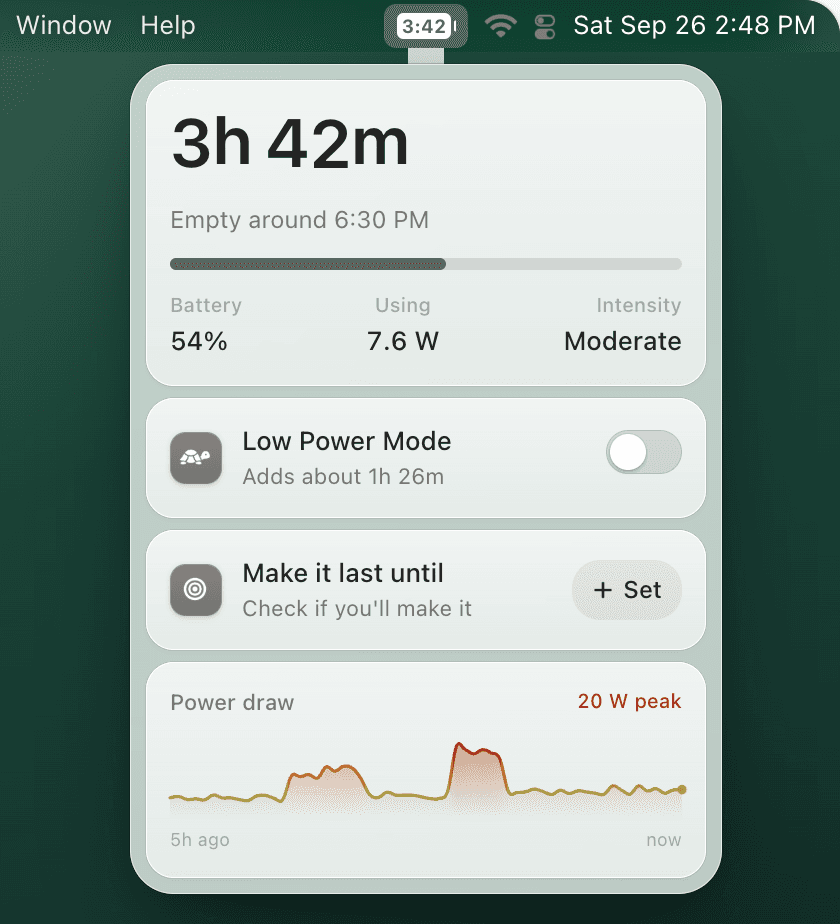
Apple's charging feature protects long-term health, but it does not answer the day-to-day question: “how long will this battery last right now?” TurtleBar adds live time remaining, low-battery alerts, and automatic Low Power Mode triggers so you can keep Optimized Battery Charging on without guessing.
Optimized charging vs charge limiting vs battery saver apps
Optimized Battery Charging is Apple's default protection. A charge limit targets a specific ceiling, such as 80%: macOS has one built in, the Charge Limit, on Macs with Apple silicon running macOS Tahoe 26.4 or later (System Settings → Battery, info button next to Charging, 80% to 100%). A dedicated limiter app such as AlDente covers Intel Macs, older macOS, and finer control like sailing between two values. A battery saver app focuses on how you use the Mac: time remaining, alerts, brightness awareness, and Low Power Mode behavior. Many people use more than one approach.
If your main goal is a hard 80% ceiling, read how to limit MacBook charging to 80% and the MacBook battery limiter guide. If your main goal is getting more runtime during work, travel, and meetings, start with MacBook battery saver apps.
FAQ
Is it bad to keep a MacBook plugged in?
It is not automatically bad, but heat and long periods at 100% can accelerate battery aging. Optimized Battery Charging helps by reducing time spent fully charged when macOS can predict your routine.
Should I discharge my MacBook to calibrate the battery?
Usually no. Modern MacBooks do not need regular deep-discharge calibration. If the percentage looks wrong, see the MacBook battery calibration guide before following old advice.
Does TurtleBar limit MacBook charging to 80%?
No. TurtleBar focuses on battery time remaining, low-battery alerts, and automatic Low Power Mode. Optimized Battery Charging is not a fixed cap either. For a fixed 80% cap, use the macOS Charge Limit on a Mac with Apple silicon and macOS Tahoe 26.4 or later, or a dedicated limiter such as AlDente on Intel Macs and older macOS. TurtleBar is useful alongside those tools for runtime planning.