MacBook Battery Charging Tips: 80%, Heat & Daily Habits
The best MacBook charging routine is not a single rule like “always keep it at 80%” or “always drain it to zero.” Modern MacBooks already manage charging better than older laptops. Your job is to avoid heat, reduce unnecessary time at 100%, and make sure a smaller charge still lasts when you unplug.
Best daily charging routine
- Keep Optimized Battery Charging and Battery Health Management enabled.
- Do not worry about charging to 100% before travel or long meetings.
- If docked most of the day, set the Charge Limit to 80% (Apple silicon, macOS Tahoe 26.4 or later). On an Intel Mac or older macOS, let Optimized Battery Charging hold near 80% or consider a dedicated charge limiter.
- Avoid heat: soft surfaces, direct sun, blocked vents, and heavy workloads while charging.
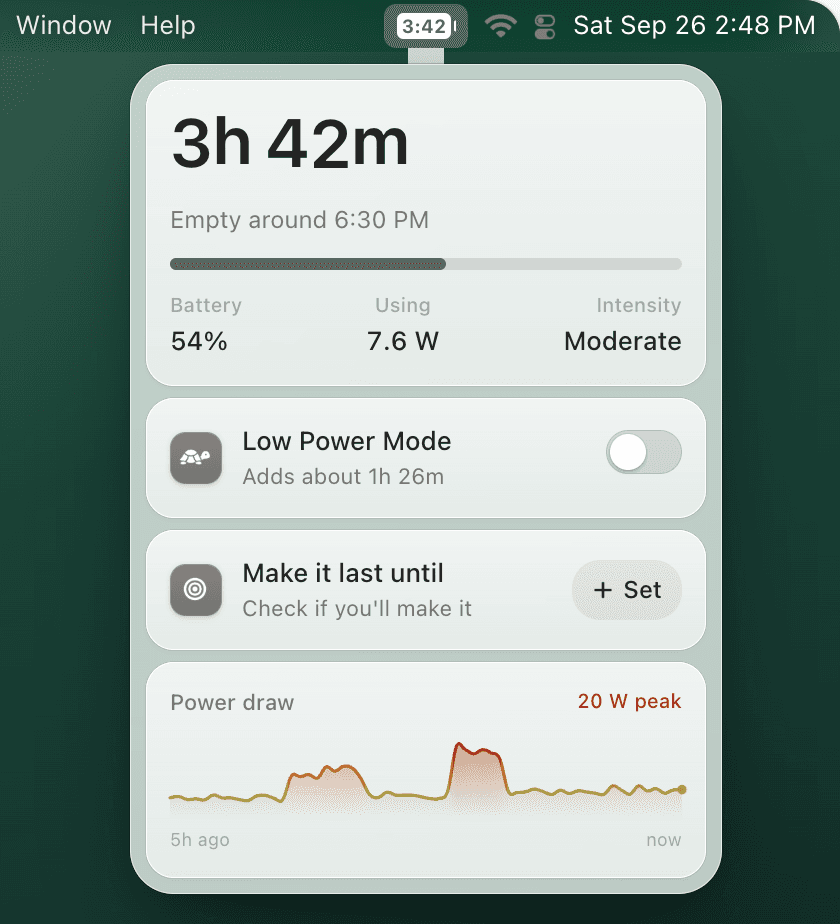
- After unplugging, use time remaining and Low Power Mode automation so the charge you have lasts longer.
Should you charge your MacBook to 80% or 100%?
Charging to 100% is fine when you need maximum runtime. The problem is leaving the battery hot and full for long stretches every day. That is why Apple includes Optimized Battery Charging, which can pause charging around 80% when macOS predicts you will stay plugged in.
A strict 80% limit is most useful for a MacBook that lives on a desk, monitor, or dock. On a Mac with Apple silicon running macOS Tahoe 26.4 or later, that limit is built in: open System Settings → Battery, click the info button next to Charging, and pick a Charge Limit between 80% and 100%. Charge to Full Now in the battery menu overrides it for one charge. On Intel Macs and older macOS, a limiter app such as AlDente does the same job. If you move around often, a hard cap can backfire because you start every unplugged session with less energy. In that case, Apple's adaptive charging plus better runtime habits is usually less annoying.
| Situation | Charging approach | Runtime habit |
|---|---|---|
| Desk or dock most days | 80% Charge Limit, or Optimized Charging on older Macs | Use time remaining before unplugging. |
| Travel or classes | Charge to 100% when needed | Enable Low Power Mode early, not at 5%. |
| Battery aging concerns | Avoid heat and constant 100% | Check capacity and cycle count monthly, not obsessively. |
Heat matters more than perfect charging math
Lithium-ion batteries dislike heat. A MacBook charging under a blanket, in direct sun, or while running a sustained heavy workload is under more stress than a MacBook calmly charging on a desk. If you only change one habit, keep the machine cool while it charges.
- Charge on a hard surface instead of a bed or couch.
- Avoid direct sunlight and hot cars.
- Close runaway apps before long charging sessions.
- If the MacBook feels hot, pause heavy work or unplug after it reaches enough charge.
Make smaller charges easier to live with
If you often unplug at 80%, percentage alone is not enough. TurtleBar shows battery time remaining in the menu bar and can turn on Low Power Mode automatically at your chosen threshold.