Low Power Mode Not Showing on Mac? Where to Find It and How to Fix It
On a Mac, Low Power Mode lives in System Settings → Battery (macOS Monterey or later). The quick switch in the menu bar's battery menu only arrived in macOS Sequoia 15.1, and MacBook Pro models with High Power Mode list it under Energy Mode instead. If you still can't see it, your Mac may not support it.
Quick check
Where Low Power Mode should be on Mac
- Open System Settings.
- Choose Battery in the sidebar (Energy on desktop Macs that support it).
- Look for Low Power Mode and choose Never, Always, Only on Battery, or Only on Power Adapter.
- No Low Power Mode row? Look for Energy Mode and choose Low Power from the On battery or On power adapter menu. MacBook Pro models that support High Power Mode use this layout.
- On macOS Sequoia 15.1 or later, you can also click the battery icon in the menu bar and turn Low Power Mode on there.
Why Low Power Mode may be missing
| What you see | Likely reason | What to do |
|---|---|---|
| No switch in the menu bar | The battery menu switch needs macOS Sequoia 15.1 or later, and the battery icon has to be shown in the menu bar. | Update macOS, or use System Settings → Battery as the reliable path. |
| Only “Energy Mode” in Battery settings | Your MacBook Pro also supports High Power Mode, so all three modes share one menu. | Choose Low Power from the On battery (or On power adapter) menu. |
| No Battery section | You are on a desktop Mac. Apple lists only some recent desktop models as supporting Low Power Mode. | Check System Settings → Energy; Low Power Mode is mostly a MacBook feature. |
| Nothing at all on an older macOS | Low Power Mode came to the Mac with macOS Monterey. | Update to Monterey or later if your MacBook supports it. |
| No percentage trigger | macOS only ships manual Low Power Mode choices. | Use TurtleBar to enable Low Power Mode below 40%, below 30%, or for specific apps. |
Fixes to try before installing anything
- Check System Settings, not only the menu bar. The menu bar battery menu can differ by macOS version and Mac model.
- Look for Energy Mode. On MacBook Pro models with High Power Mode, Low Power is one of the Energy Mode choices.
- Restart System Settings. Quit and reopen it if Battery preferences look incomplete after an update.
- Update macOS. If you are on an older version, the Battery settings layout may be different or missing newer options.
- Confirm you are on a MacBook. Low Power Mode is a battery-runtime feature, so most desktop Macs do not show it.
- Separate “missing” from “not automatic.” If you see Always/Only on Battery but not “below 40%,” nothing is broken: macOS simply does not include battery-level automation.
A Low Power Mode switch in your menu bar
Put Low Power Mode one click away, and let it turn itself on.
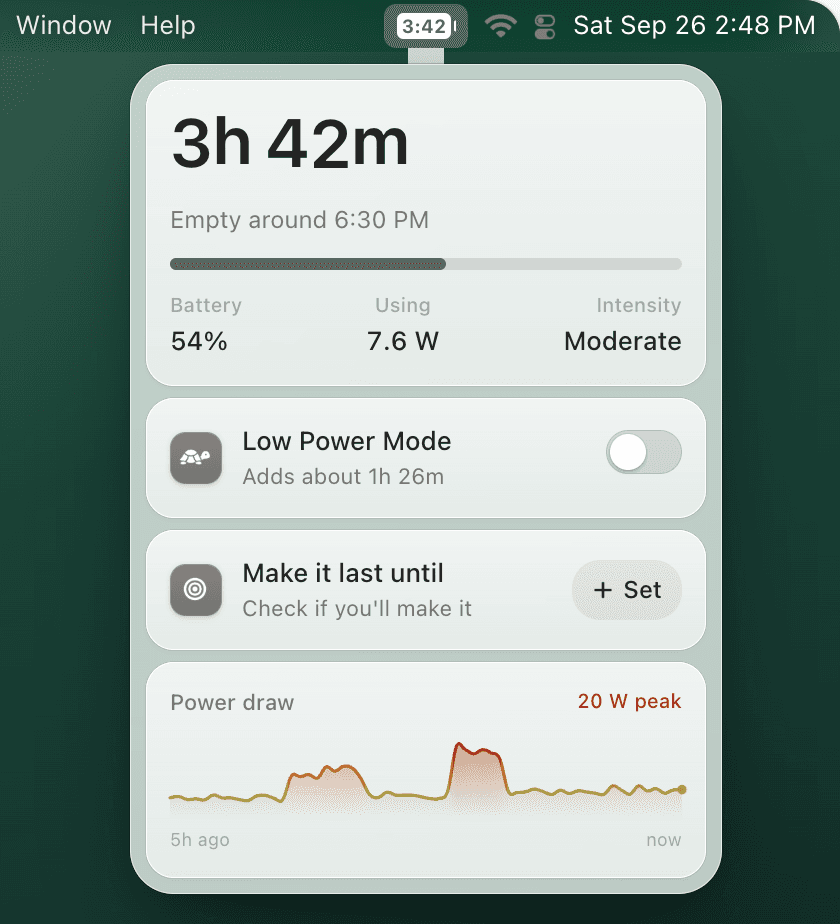
TurtleBar's menu bar popover has a Low Power Mode switch that tells you what it is worth before you flip it, from macOS Ventura on, not just Sequoia 15.1. It can also switch it on for you: below a battery level, below an amount of time left, when your Mac won't last until a time you set, after the Mac sits idle, or while specific apps are open.
- “Adds about 1h 20m”The switch shows how much time Low Power Mode buys you (example value).
- Below 20%, or under 1 hourBattery-level and time-left rules that macOS does not have.
- Never fights youIts automation never undoes a Low Power Mode change you made yourself.
What it does not do: TurtleBar switches macOS's own Low Power Mode, so it cannot add the feature to a Mac that does not support it. It needs macOS 13 Ventura or later.
One-time purchase, no subscription. 14-day refund. macOS 13 or later, Apple Silicon and Intel.
If you were looking for a menu bar shortcut
On macOS Sequoia 15.1 and later, the battery menu in the menu bar has a Low Power Mode switch, and the battery icon turns yellow while it is on. On older versions there is no built-in menu bar switch, which does not mean Low Power Mode is unavailable. Start in System Settings → Battery, then decide whether you need a manual shortcut or automatic rules.
For manual access paths, use the Low Power Mode shortcut guide. For automatic battery thresholds, use the auto Low Power Mode on Mac guide.
Frequently asked questions
Why is Low Power Mode not showing on my Mac?
The usual reasons: you are looking in the menu bar on a macOS version before Sequoia 15.1, where the setting only exists in System Settings > Battery; your MacBook Pro lists it under Energy Mode instead; your Mac runs a macOS older than Monterey; or it is a desktop Mac, where only some recent models have it.
Where is Low Power Mode on a Mac?
Open System Settings > Battery and use the Low Power Mode pop-up menu (Never, Always, Only on Battery, or Only on Power Adapter). On Macs that show Energy Mode instead, choose Low Power from the On battery or On power adapter menu. On macOS Sequoia 15.1 or later you can also turn it on from the battery menu in the menu bar.
Why is Low Power Mode not in my Mac menu bar?
The menu bar switch arrived in macOS Sequoia 15.1. On older versions, Low Power Mode is only in System Settings > Battery. On 15.1 or later, make sure the battery icon is shown in the menu bar, then click it to find the switch.
Why can I choose “Only on Battery” but not “below 40%”?
That is a macOS limitation, not a broken setting. Apple provides broad modes like Always and Only on Battery, but not a custom battery-percentage trigger. TurtleBar adds that automation layer.
Can I automate Low Power Mode if macOS only gives manual settings?
Yes. TurtleBar can turn Low Power Mode on below a battery level or amount of time left, when your Mac will not last until a time you set, after the Mac has been idle, or while specific apps are open. It never undoes a change you made yourself.
Should I use Always or Only on Battery?
Only on Battery is the safer built-in default for most people. Always is useful on travel days but can slow heavy work. A percentage trigger is usually better because it keeps performance normal until battery life matters.