Safari vs Chrome Battery Life on MacBook: Which Saves More?
Safari is usually the safer battery choice on a MacBook, but a clean Chrome profile can be efficient and a messy Safari session can still drain power. The practical answer is to test the browser workload you actually use: tabs, meetings, docs, dashboards, extensions, and background sync.
Quick answer
Use Safari for battery-sensitive browsing; tame Chrome when you need it
- Safari is often better for long unplugged browsing, reading, video playback, and Apple ecosystem features.
- Chrome can be necessary for work profiles, extensions, dev tools, Google Meet, and site compatibility.
- The biggest battery hit is usually not the browser name; it is a tab, extension, video call, dashboard, or helper process.
- Check Activity Monitor → Energy before switching everything.
- If browser work keeps draining your battery, automate Low Power Mode instead of waiting until the warning appears.
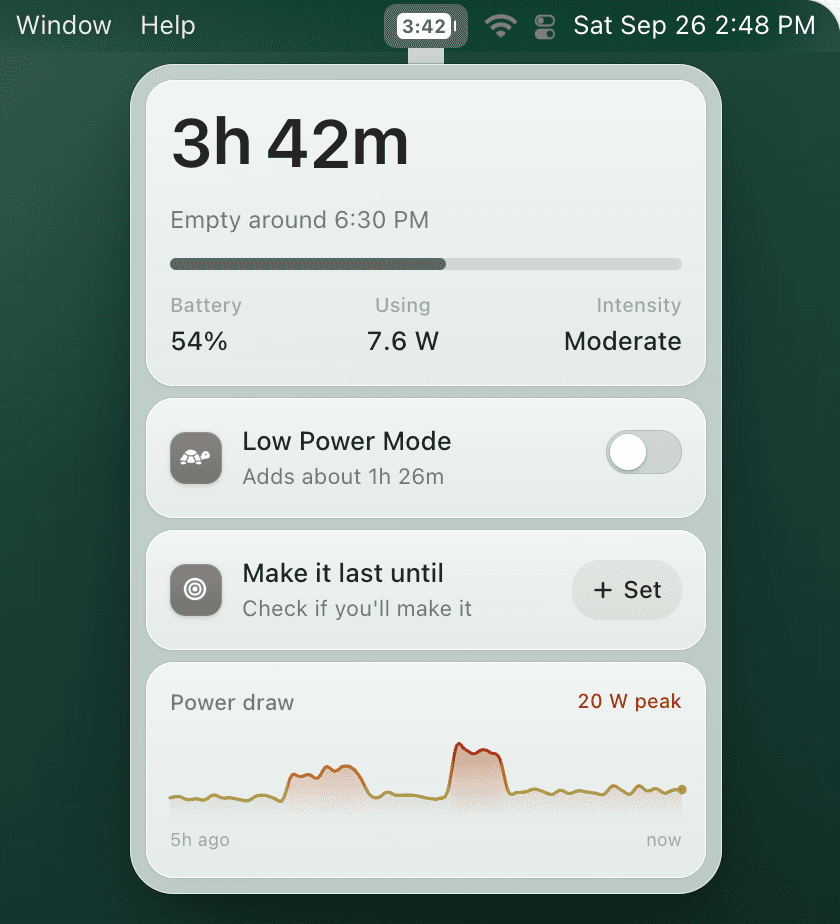
TurtleBar shows battery time remaining and can turn on Low Power Mode when Chrome, Safari, meetings, or battery thresholds make runtime critical.
Safari vs Chrome for MacBook battery life
| Scenario | Likely better choice | Why it matters |
|---|---|---|
| Reading, shopping, email, light browsing | Safari | Tight macOS integration and fewer always-on extensions usually means lower idle drain. |
| Google Workspace, Chrome profiles, extension-heavy work | Chrome, optimized | Switching may cost more productivity than it saves; fix tabs, helpers, and extensions first. |
| Video calls and screen sharing | Test both | Camera, noise processing, and screen sharing dominate browser differences. |
| Long unplugged travel day | Safari + Low Power Mode | Use the browser with lower background activity and reduce system power draw. |
How to test your real browser battery drain
- Charge your MacBook enough to test unplugged and close unrelated heavy apps.
- Open Activity Monitor → Energy and note current Energy Impact.
- Use Safari for 20-30 minutes with your normal tabs: docs, email, video, dashboards, and music.
- Repeat the same workload in Chrome with the same websites and extensions you normally rely on.
- Compare Energy Impact, 12 hr Power, fan/heat, and the battery chart in System Settings → Battery.
If Chrome, Google Chrome Helper, or a renderer process stays near the top, use the dedicated Chrome draining MacBook battery guide. If multiple apps are high, start with MacBook battery usage by app.
Make Chrome less battery hungry
- Turn on Chrome Energy Saver and Memory Saver.
- Remove extensions you do not use every day, especially coupon, shopping, analytics, and developer helpers.
- Open Window → Task Manager in Chrome and sort by CPU to find the tab doing the damage.
- Disable Continue running background apps when Google Chrome is closed if you do not need it.
- Use Safari for passive reading/video and keep Chrome for work profiles that require it.
Where TurtleBar fits
TurtleBar does not pretend to make one browser magically efficient. It solves the part macOS still makes manual: knowing how much battery time remains and switching Low Power Mode on at the right moment. For browser-heavy days, that can mean enabling Low Power Mode below your chosen battery percentage, when unplugged, or when heavy work apps are open.
Stop guessing how much browser time is left
Use TurtleBar for menu bar battery time remaining and automatic Low Power Mode rules. One-time $4.99.