MacBook Low Battery Alert: Better Warnings & Automation (2026)
The built-in MacBook low battery warning is useful, but it often appears when you are already in scramble mode. A better setup tells you how much time is really left, starts saving power before the warning, and makes the next action obvious.
Quick answer
What is the best MacBook low battery alert setup?
- Show battery percentage in System Settings → Control Center → Battery.
- Watch time remaining, not just percent, because 30% can mean 25 minutes in Zoom or several hours while writing.
- Start conserving at 30–40%, before macOS shows the urgent low battery warning.
- Automate Low Power Mode so your Mac switches into a safer state without waiting for a late notification.
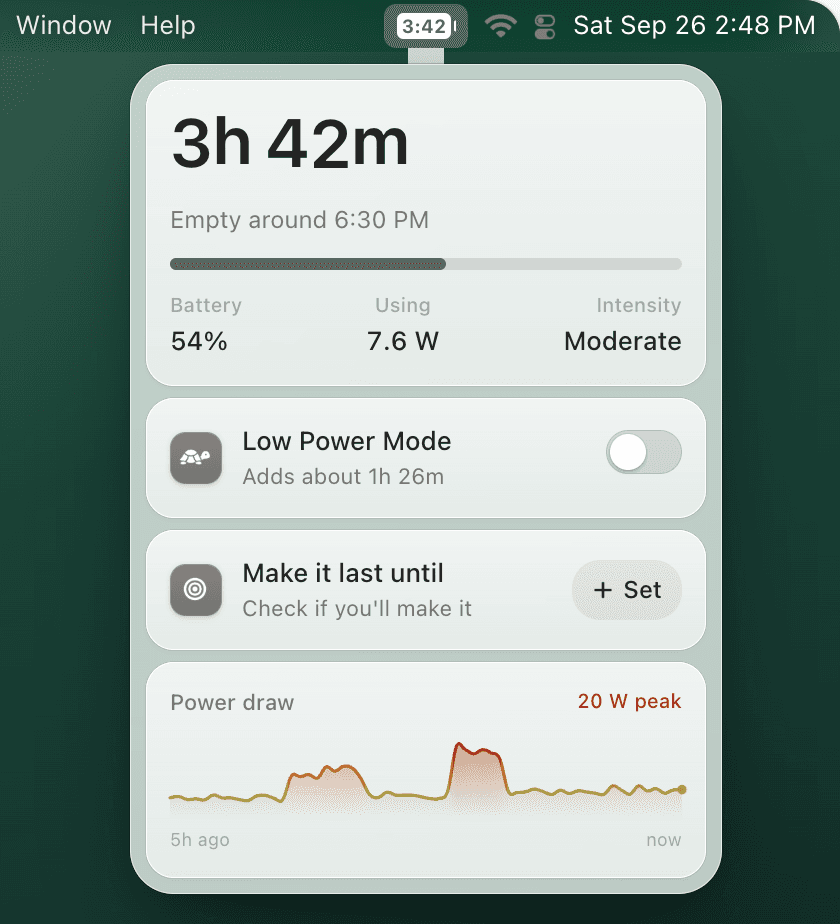
TurtleBar adds menu bar time remaining plus automatic Low Power Mode rules for a one-time $4.99.
Custom notification
Can you set a custom low battery notification on Mac?
macOS gives you a built-in warning, but it does not let you choose practical thresholds such as “warn me at 40% before a train ride” or “start saving power at 30% before a meeting.” The workaround is to make the menu bar more useful: show time remaining, choose an earlier conserve point, and automate Low Power Mode before the default alert appears.
Why the built-in Mac low battery warning feels late
macOS is designed to avoid noisy notifications, so it does not give you a full custom alert system for 40%, 30%, 25%, or every workload. That is why many users only notice the problem when they are already below 20% and need to find power immediately.
The real issue is that battery percentage is not a clock. Video calls, Chrome tabs, Xcode builds, games, screen brightness, external devices, and background sync can all turn the same percentage into very different runtimes. If you want a useful warning, combine percentage with Mac battery time remaining.
Recommended alert thresholds
| Battery level | What it should mean | Best action |
|---|---|---|
| 40% | Travel or meeting buffer | Enable Low Power Mode if you will be away from a charger. |
| 30% | Daily conserve point | Dim display, close heavy apps, or let TurtleBar switch modes automatically. |
| 20% | Urgent warning | Save work and find power soon. |
| 10% | Shutdown risk | Stop demanding tasks and plug in immediately. |
How to make MacBook battery warnings more useful
1. Turn on battery percentage in the menu bar
Open System Settings → Control Center → Battery and enable Show Percentage. If it is missing or stuck, use the show battery percentage on Mac and battery percentage not updating guides.
2. Add time remaining
A percentage alert is still incomplete. Time remaining tells you whether your current workload is safe or whether a power-hungry app is draining the battery faster than expected. TurtleBar puts battery time in the menu bar so you do not need to open Activity Monitor or Battery settings repeatedly.
3. Trigger Low Power Mode before the warning
The best low battery alert is the one that prevents panic. macOS Low Power Mode can reduce power use, but macOS does not include a simple custom percentage trigger. TurtleBar fills that gap by enabling Low Power Mode automatically at the threshold you choose.
Stop waiting for the 20% warning
Set TurtleBar to show time remaining and switch Low Power Mode on at 40%, 30%, or another threshold that matches your workday.