Mac battery troubleshooting
MacBook Battery Percentage Not Updating? Fixes & Checks
If your MacBook battery percentage looks frozen, jumps suddenly, or stays at 80% or 100% longer than expected, do not assume the battery is dead. Start with the safe checks below.
Quick answer
The fastest fix is to refresh the battery UI: open System Settings → Control Center → Battery, toggle menu bar display off and on, then restart your Mac. If the percentage is stuck around 80%, check System Settings → Battery for Optimized Battery Charging or Charging On Hold before troubleshooting hardware.
1. Decide whether it is frozen or just charging optimization
A MacBook that pauses near 80% is often behaving normally. Apple may hold charging to slow battery aging. Look for messages like Charging On Hold or a setting called Optimized Battery Charging in Battery settings.
A truly stuck percentage usually does not move after unplugging for 20–30 minutes, or it jumps from one value to another after a restart. That points to a reporting/UI issue rather than the normal 80% charge hold.
2. Refresh the menu bar battery icon
- Open System Settings.
- Go to Control Center.
- Find Battery.
- Turn the battery menu bar item and Show Percentage off, then on again.
- Restart the Mac if the menu bar still shows the old value.
If the built-in menu bar is visible but not useful, see the guide to show battery percentage on Mac and the guide to get battery time remaining back.
3. Check Battery settings and battery condition
Open System Settings → Battery and confirm the Mac sees the battery normally. If Battery Condition says Normal, the issue is less likely to be immediate hardware failure. If it says Service Recommended, combine this guide with the Service Recommended battery guide.
Also compare the percentage with real-world behavior. If the Mac still lasts hours, the percentage may be temporarily inaccurate. If it shuts down at 20%, 30%, or 50%, read the MacBook dies at 50% guide.
4. Look for apps causing sudden percentage jumps
Sometimes the percentage is updating, but heavy apps make it fall so quickly that it looks wrong. Open Activity Monitor → Energy and sort by energy impact. Browser tabs, video calls, games, Xcode builds, external displays, and background sync tools can all drain battery fast.
TurtleBar helps here
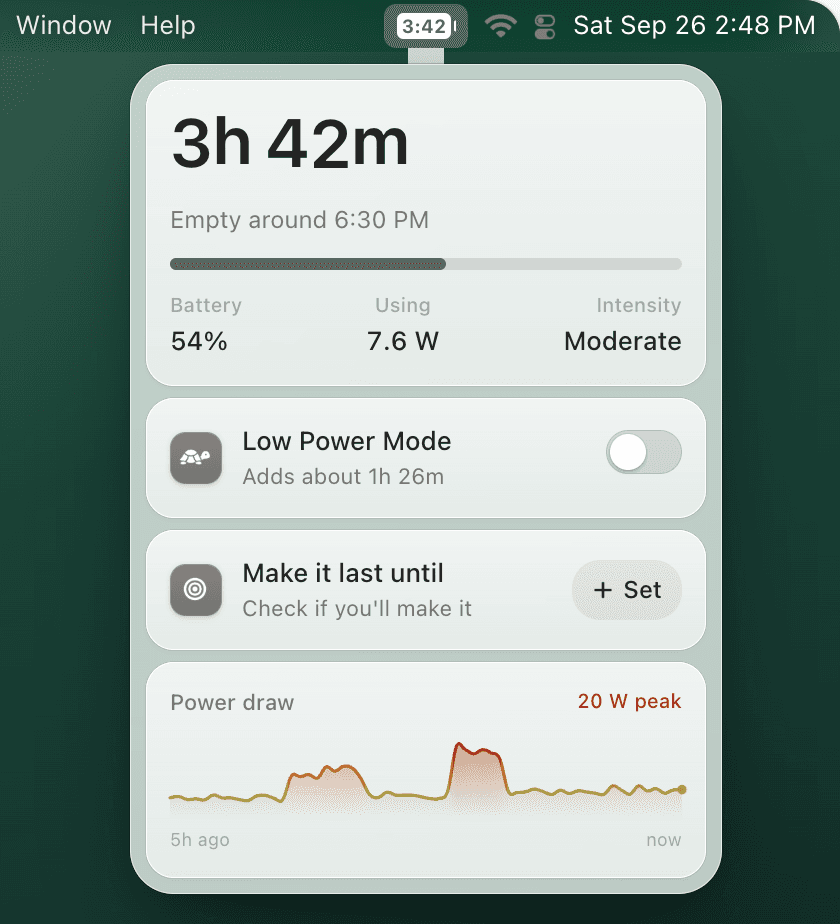
TurtleBar shows battery time remaining, sends low-battery alerts, and can turn on Low Power Mode automatically when your battery reaches a threshold or when power-hungry apps are open.
5. Use the right reset for your Mac
On Apple silicon Macs, a normal shutdown and startup handles the power-management reset path for most users. On Intel Macs, Apple’s SMC reset steps can help with battery, charging, and power reporting issues. Use Apple’s exact instructions for your model instead of guessing key combinations.
Avoid repeated deep discharges as a “calibration” habit. Modern MacBook batteries do not need frequent full drain cycles, and unnecessary deep discharges can add wear.