MacBook Battery Temperature: What's Safe, How to Check It, and How to Cool It
Apple does not publish a safe temperature for the battery itself. It publishes the room temperature MacBooks work best in: 10 to 35 °C (50 to 95 °F). Apple also warns that ambient heat above 35 °C can permanently damage battery capacity, and that charging in that heat makes it worse. Warm while charging or under load is normal.
Quick answer
A hot MacBook battery is usually a workload, charging, or airflow problem first
- Move the MacBook to a cool, hard surface and keep vents clear.
- Close obvious high-power apps: video calls, games, Chrome tabs, AI tools, exports, and virtual machines.
- Unplug unnecessary USB-C hubs, external drives, and displays while troubleshooting.
- Check System Settings → Battery → Battery Health and compare heat symptoms with cycle count and maximum capacity.
- If the battery is swelling, the case is deforming, or the Mac shuts down unexpectedly, stop using it and get service.
Apple's temperature ranges for MacBooks
| Situation | Apple's guidance |
|---|---|
| Using the Mac | Works best at 10 to 35 °C (50 to 95 °F) ambient temperature. |
| Storing the Mac | -20 to 45 °C (-4 to 113 °F). |
| Above 35 °C (95 °F) | Can permanently damage battery capacity. Charging in that heat can damage it further. |
| Long-term storage | Leave the battery around 50%, not full or empty. |
These are room temperatures, not battery sensor readings. Source: Apple's page on maximizing battery life and lifespan.
How to check your MacBook battery temperature
macOS does not show battery temperature in System Settings or in System Information → Power. To see the battery's own sensor reading, use a third-party app such as coconutBattery, which shows it next to capacity and cycle count. Check it during your normal work and again when the Mac feels hot, so you have a baseline for your machine rather than a number from someone else's.
Why heat matters for MacBook battery health
MacBooks use lithium-ion batteries. They are happiest when they avoid extremes: deep discharge, constant high load on battery, and sustained heat. macOS can throttle performance, pause charging, or run fans to protect hardware, but it cannot make a hot desk setup harmless forever. Heat is especially punishing when the Mac is plugged in, charging, and doing heavy work at the same time.
Common reasons a MacBook battery gets hot
| Cause | What you will notice | First fix |
|---|---|---|
| Video calls or screen sharing | Fans, warm keyboard, rapid drain during meetings. | Use Low Power Mode, reduce brightness, close unused apps. |
| Browser-heavy work | Chrome, streaming, ads, or many tabs using CPU. | Check Activity Monitor and close the worst tabs/extensions. |
| Charging plus heavy load | Mac stays hot near the USB-C side or above the keyboard. | Let the Mac cool, use the correct charger, and avoid soft surfaces. |
| Battery aging | Short runtime, Service Recommended, shutdowns, or low capacity. | Check Battery Health, cycle count, and replacement symptoms. |
Safe troubleshooting checklist
- Cool the environment. Avoid direct sun, cars, beds, blankets, and blocked airflow.
- Find the workload. Open Activity Monitor and sort by Energy or CPU to find runaway apps.
- Turn on Low Power Mode. It reduces background power use and can stop heat from compounding drain.
- Check charging gear. Use a known-good Apple or reputable USB-C charger and cable with enough wattage for your MacBook.
- Review battery health. If Battery Health says Service Recommended or capacity is near 80%, heat plus short runtime is a stronger replacement signal.
Heat is mostly power
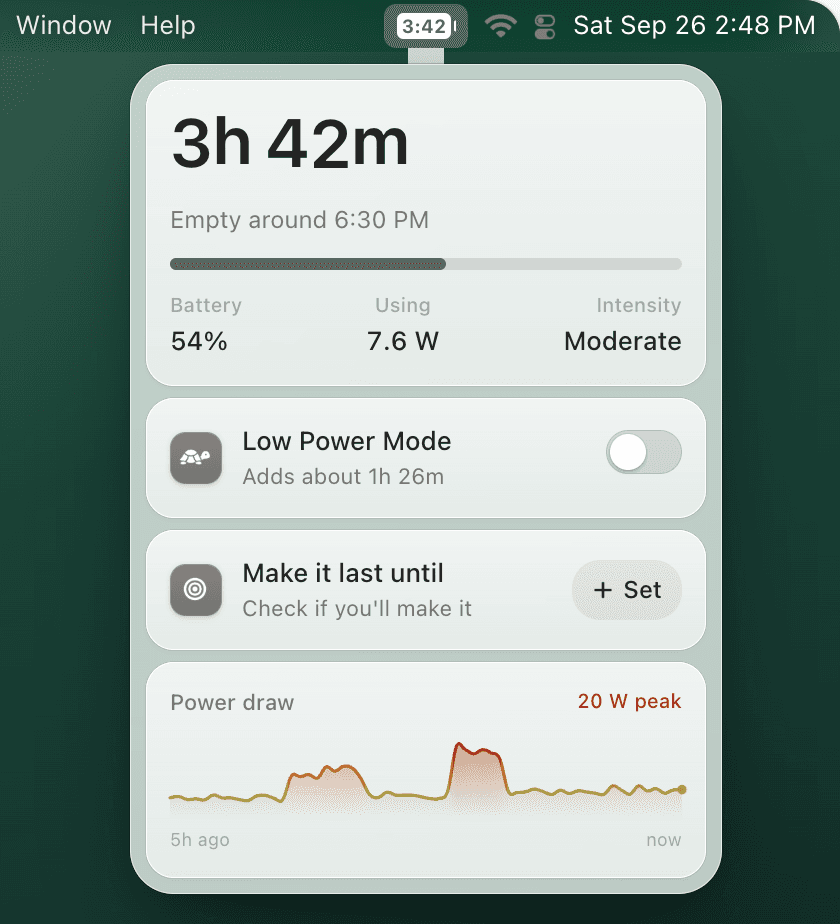
A hot MacBook is usually a busy one. TurtleBar shows what is keeping it busy.
Nearly all the power your Mac uses ends up as heat. TurtleBar lists the five apps using the most power right now, in watts and in the minutes of battery each one costs, next to the time you have left. When you want the Mac to calm down, its Low Power Mode switch tells you how much time it adds before you flip it.
- Top 5 apps by powerIn watts, and in the battery time each one costs.
- “Adds about 1h 20m”The Low Power Mode switch shows what it is worth first (example value).
- Per-app rulesTurn Low Power Mode on whenever a heavy app, like a video call, is open.
What it does not do: TurtleBar does not read or show battery temperature. For the sensor reading, use coconutBattery as described above.
One-time purchase, no subscription. 14-day refund. macOS 13 or later, Apple Silicon and Intel.
When heat is a service warning
Warmth during charging or heavy workloads can be normal. Stop treating it as normal if you see swelling, a distorted trackpad or case, sudden shutdowns, burning smells, liquid damage, or repeated heat during light use. Back up your Mac and contact Apple or an authorized repair provider.
FAQ
What temperature is safe for a MacBook battery?
Apple does not publish a limit for the battery itself. It says MacBooks work best at room temperatures of 10 to 35 °C (50 to 95 °F), should be stored between -20 and 45 °C (-4 and 113 °F), and that ambient heat above 35 °C can permanently damage battery capacity.
How do I check my MacBook battery temperature?
macOS does not show battery temperature in System Settings or System Information. Third-party apps such as coconutBattery read the battery's own temperature sensor and show it in their main window.
Why does my MacBook battery drain faster when it is hot?
Heat often appears with high CPU or GPU load, bright displays, external monitors, video calls, browser tabs, or charging. Those workloads use more power, and sustained heat also makes lithium-ion battery aging worse over time.
Should I stop charging if my MacBook battery is hot?
If the MacBook is unusually hot, move it to a cool hard surface, close heavy apps, disconnect unnecessary accessories, and let it cool. Apple notes that charging in high ambient temperatures can damage the battery further. If heat repeats during normal charging, check the charger, cable, vents, battery health, and macOS updates.