MacBook Battery Not Lasting Long? How to Tell a Worn Battery From Fixable Drain
If Battery Health says Normal and Maximum Capacity is above 80%, the battery is probably not the main reason your MacBook dies early: an app, screen brightness, or a background task is. If it says Service Recommended or capacity is below 80%, the battery itself is worn. These six checks tell you which, before you pay for a replacement.
Quick answer
What to check first when MacBook battery life got shorter
- Open System Settings → Battery → Battery Health and record the condition and maximum capacity.
- Open Activity Monitor → Energy and sort by Energy Impact to find apps draining the battery.
- Turn on Low Power Mode before the battery is critical, not after it reaches 10%.
- Check cycle count in System Information → Power if you suspect long-term wear.
- Measure real time remaining during your normal work, because percentage alone does not show whether today's charge will last.
1. Check whether the battery is actually worn
Start with the health signal macOS already gives you. Go to System Settings → Battery and click the info button next to Battery Health. If the condition is Normal and maximum capacity is still above roughly 80%, the battery may be usable even if runtime feels shorter. If you see Service Recommended, swelling, shutdowns, or capacity below 80%, read the Service Recommended battery guide before delaying service.
2. Compare battery health with cycle count
Hold Option, click the Apple menu, choose System Information, then open Power. Cycle Count tells long-term wear. Most modern MacBooks are rated around 1,000 cycles, but the number is only useful with maximum capacity and real runtime. A MacBook at 900 cycles can still be okay; a MacBook at 300 cycles with very short runtime needs investigation.
Decision table
Shorter runtime: settings problem or replacement signal?
3. Find the app that changed your runtime
Open Activity Monitor and use the Energy tab. Video calls, Chrome tabs, Electron apps, photo/video tools, Xcode, cloud sync, and browser extensions can cut battery life dramatically even on a healthy MacBook. If runtime changed suddenly, compare what is open today with the day your Mac lasted longer.
4. Turn Low Power Mode on before it is too late
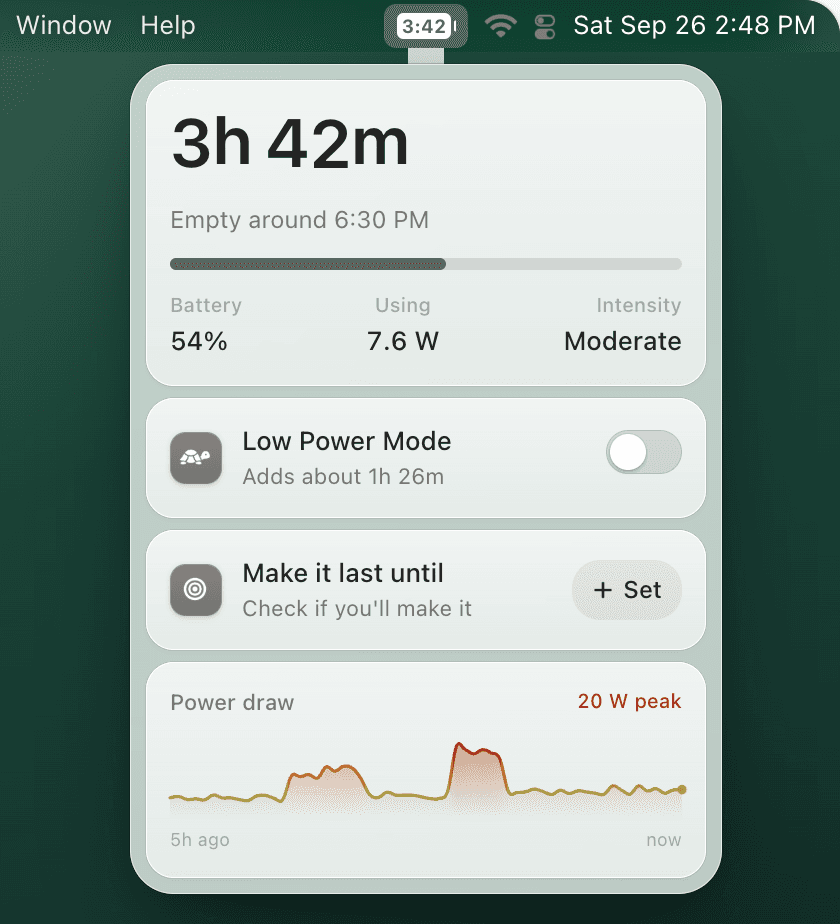
Low Power Mode helps most when it starts before the battery is already low. macOS can keep it on while unplugged, but it does not include a simple battery-percentage automation such as “turn on at 40%.” That is the gap TurtleBar fills: keep time remaining visible and switch Low Power Mode on automatically at the threshold you choose.
Shorter battery life, made predictable
Worn battery or heavy app, see when you will actually run out.
A worn battery holds less and a heavy app burns it faster. Either way, the percentage in the menu bar does not tell you when you will run out. TurtleBar shows the time left and the clock time your Mac will be empty, ranks the five apps using the most power by what they cost in minutes, and warns you when about an hour is left.
- “Empty around 4:10 PM”Time left in the menu bar, from what your Mac is really drawing.
- Top 5 apps, in minutesSee which app is costing you the most battery time right now.
- Make it last until 6 PMOn track or Short by, with a one-click fix when you are short.
What it does not do: TurtleBar cannot restore lost capacity or check battery health. If the checks above point to a worn battery, replacement is the fix; TurtleBar helps you get through the days until then.
One-time purchase, no subscription. 14-day refund. macOS 13 or later, Apple Silicon and Intel.
5. Fix the settings that quietly reduce battery life
- Lower display brightness or turn off automatic brightness spikes.
- Use Safari or fewer heavy browser tabs when unplugged.
- Disconnect USB devices you are not using.
- Pause cloud sync, backups, or photo processing until plugged in.
- Use the Mac Low Power Mode guide to understand Always vs Only on Battery.
6. Check for sleep drain separately
If the battery is fine while you work but drops overnight in a bag, that is a different problem. Start with the MacBook battery draining overnight guide and look for wake sources, Bluetooth accessories, and apps preventing sleep.
FAQ
Why is my MacBook battery not lasting as long as before?
The most common reasons are heavier apps, high display brightness, background activity, poor signal, disabled Low Power Mode, battery aging, or a recent macOS/app update. Check Battery Health, cycle count, Energy usage in Activity Monitor, and real time remaining before replacing the battery.
Should I replace my MacBook battery if runtime is shorter?
Replace the battery when short runtime lines up with low maximum capacity, Service Recommended, swelling, shutdowns, or a cycle count near the model's rating. If Battery Health is Normal, settings and workload fixes are usually worth trying first.
How can I make my MacBook last longer today?
Turn on Low Power Mode, lower display brightness, close power-heavy apps, reduce browser tabs, disconnect unused accessories, and watch real battery time remaining so you know which changes actually help.